Fortnite
PRIVATE SOFTWARE
GHOST FULL
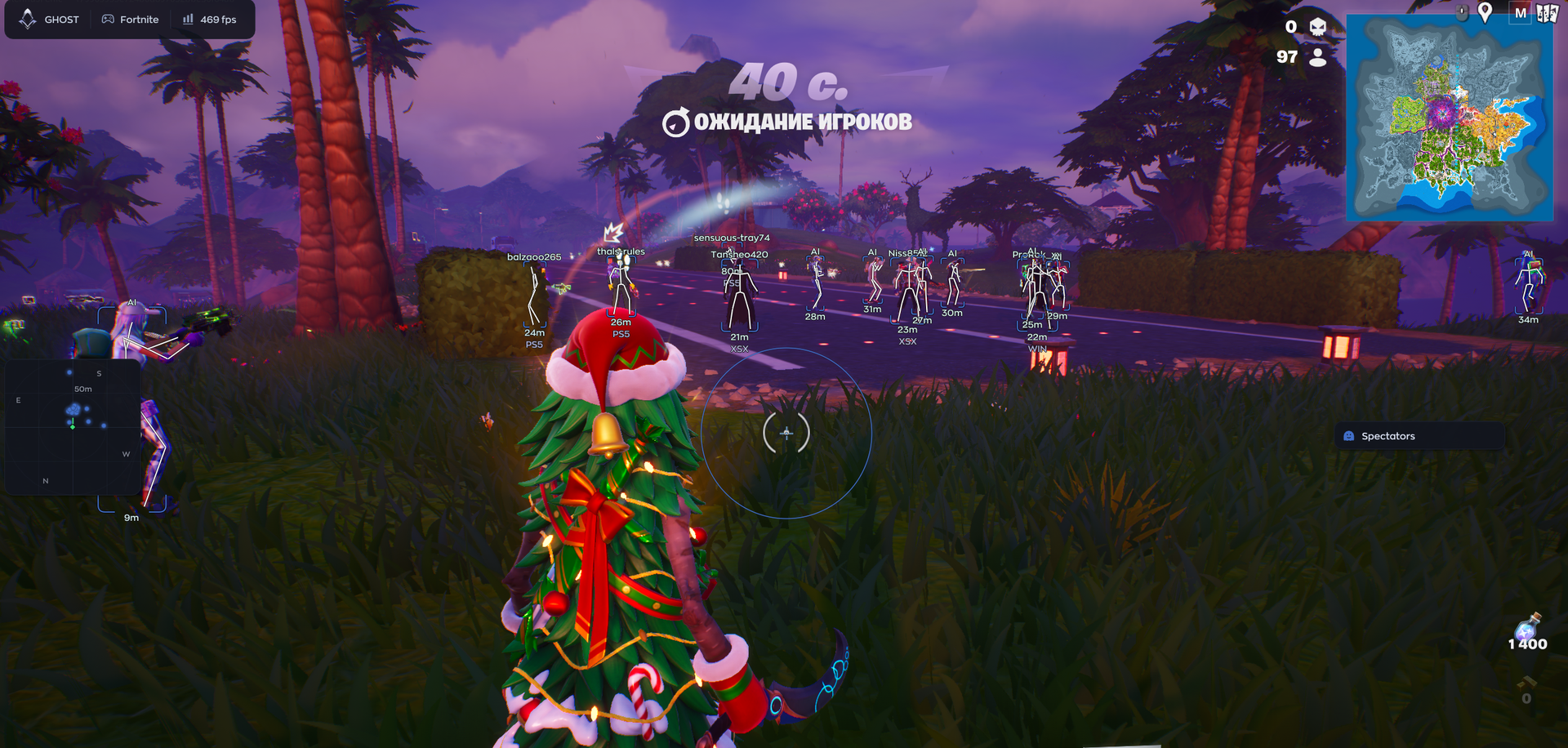
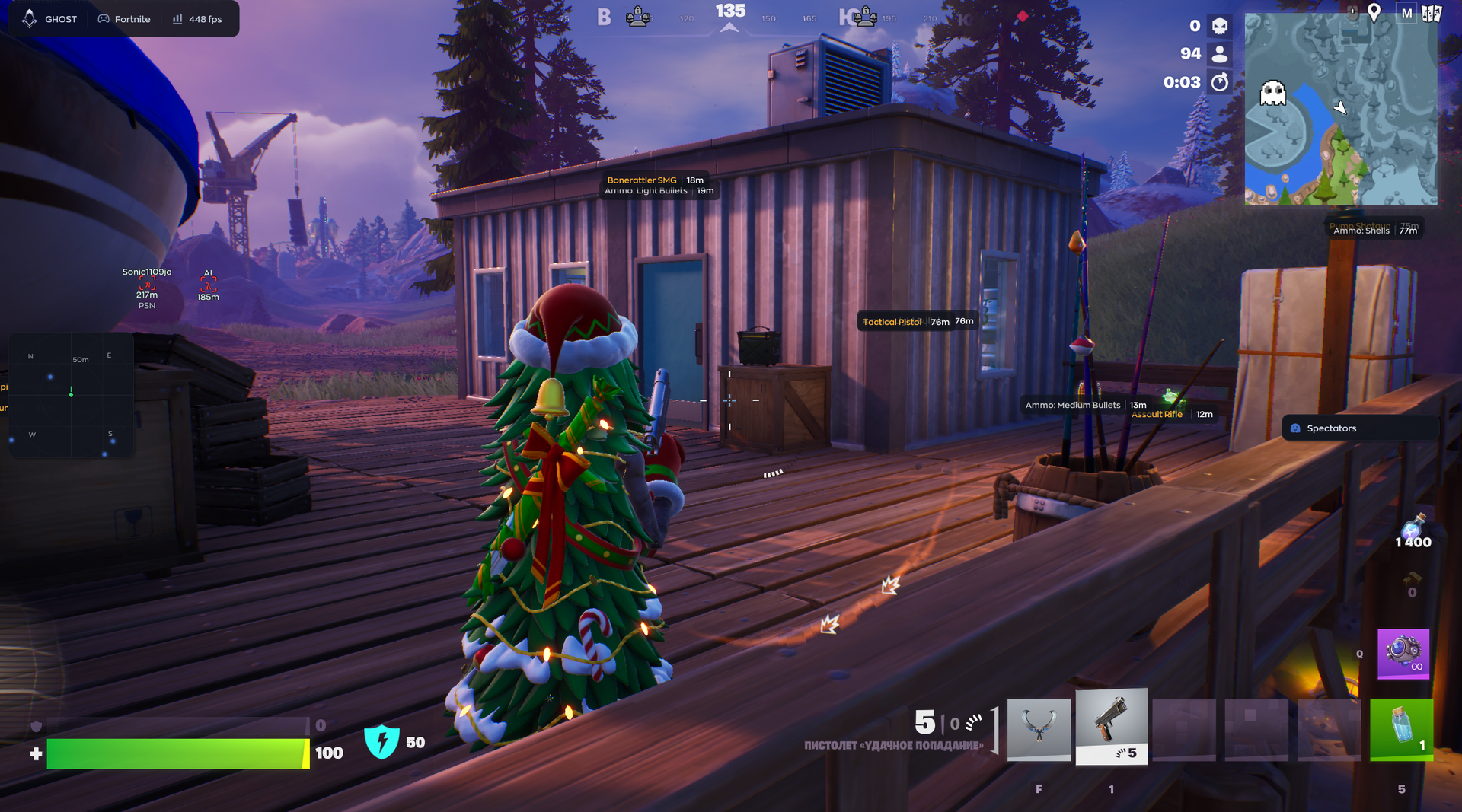
Ghost Full for Fortnite brings aiming control and battlefield awareness into one configurable setup. Player ESP and radar help you follow opponents and choose when to engage, while loot highlighting points you toward useful supplies. Tailor the aimbot to your preferences and save configurations for the way you play. Approach the next encounter with a clearer view of your options.
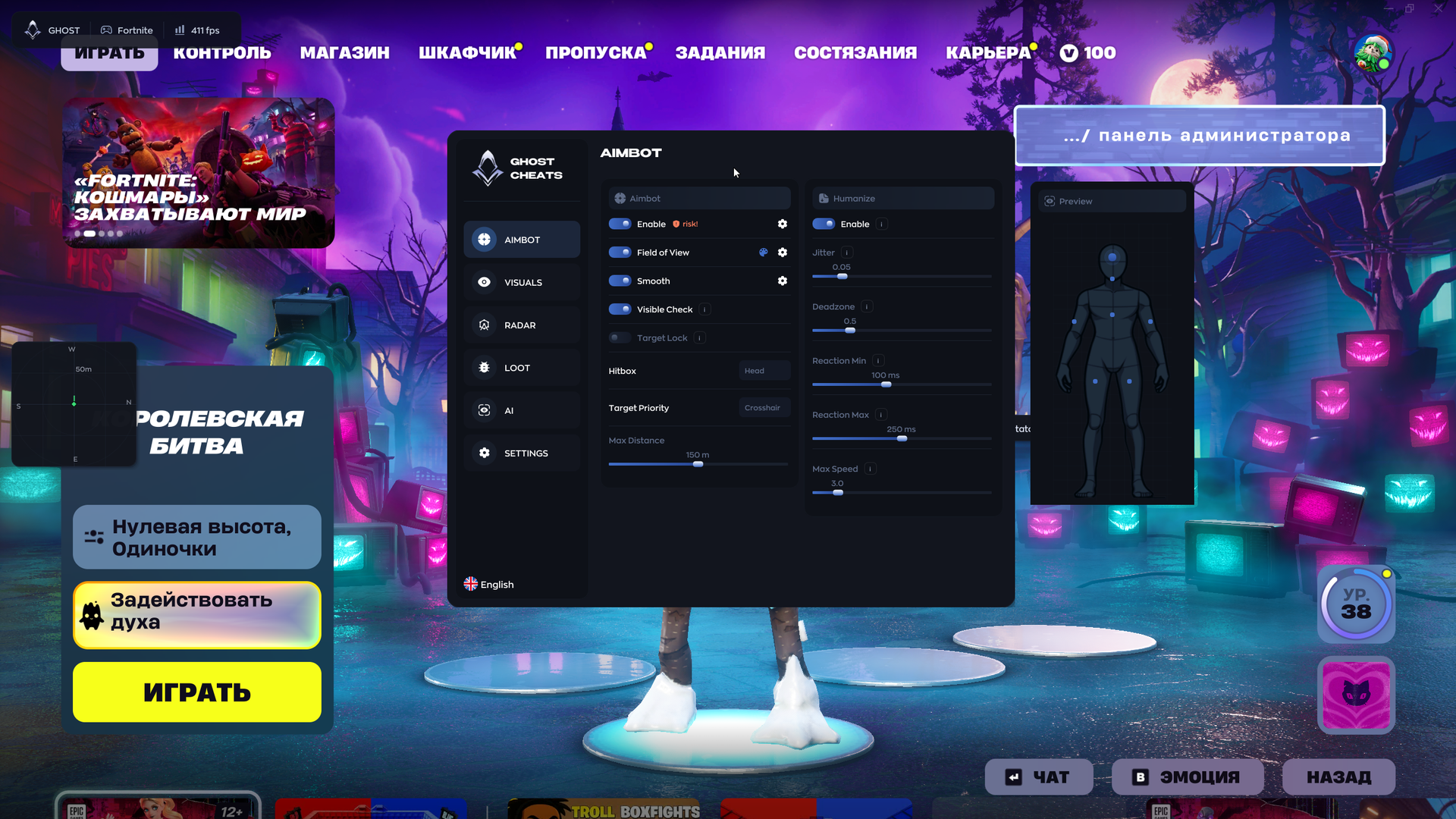
The provider marks the aimbot Enable control as “risk!”.
STATUS
UNDETECTED

FEATURES
AIMBOT
- Enable — Turns the aimbot feature on or off. Warning: risk!
- Field of View (FOV) — The radius within which the aimbot will "lock onto" a target.
- Smooth — The smoothness of the aim movement.
- Visible Check — Checks whether the target is visible.
- Target Lock — Keeps the crosshair locked onto the selected target, even as it moves.
- Hitbox — Selection of the target area (hit zone).
- Target Priority — Determines which target to prioritize.
- Humanize: Settings to make the aimbot's movements appear more natural.
- Enable — Turns the humanization feature on.
- Jitter — Adds slight, random deviations (shaking) to the crosshair.
- Deadzone — A "dead" area where the aimbot does not react to mouse movement.
- Reaction Min / Max — The minimum and maximum reaction time.
- Max Speed — The maximum speed at which the camera can turn.
- Max Distance — Aimbot distance setting.
VISUAL
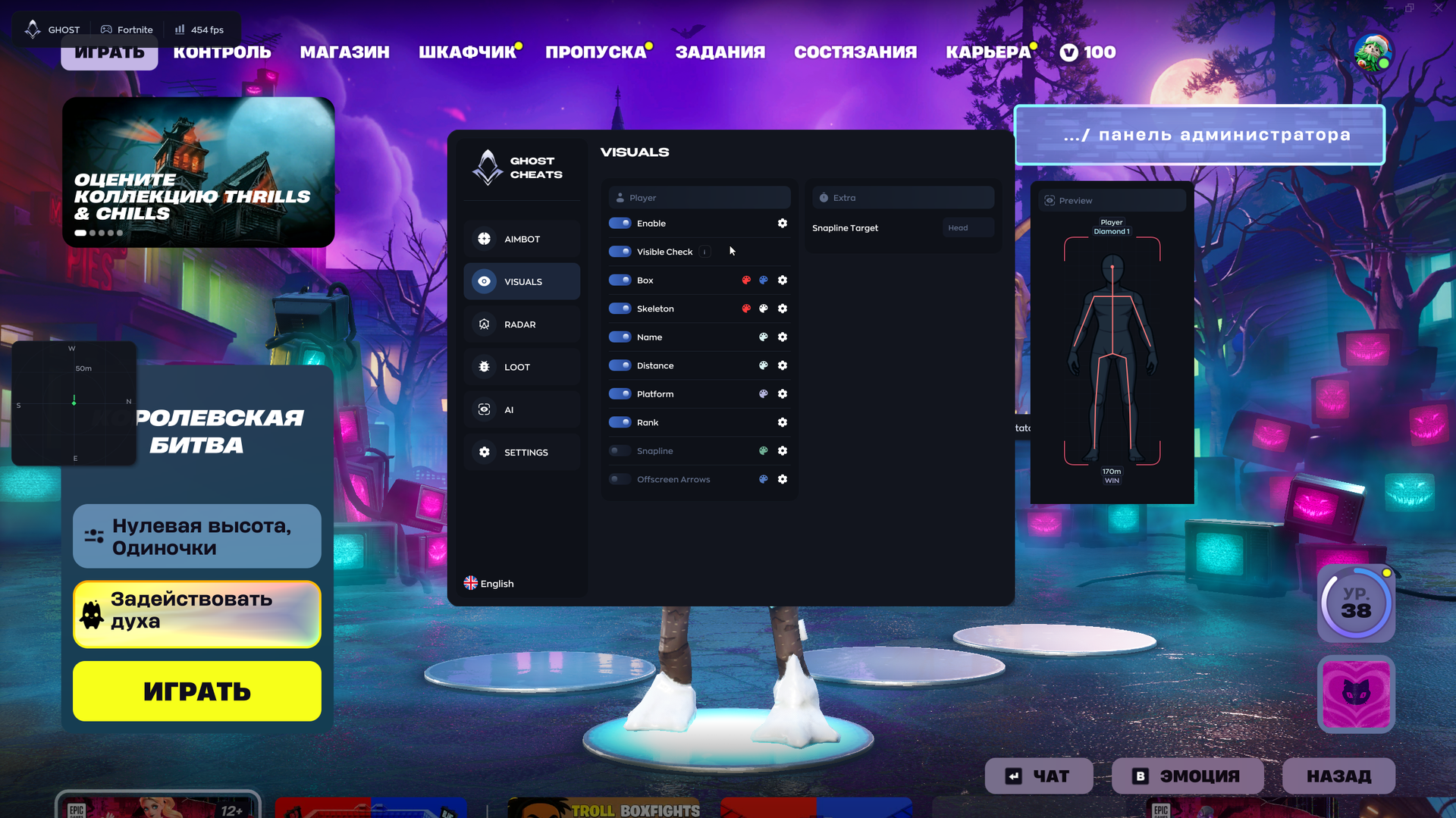
- Enable — Turn the feature on.
- Visible Check — Display information only for visible enemies.
- Box — Draw a rectangle (box) around an enemy.
- Skeleton — Display an enemy's skeleton.
- Name — Show a player's nickname.
- Distance — Show the distance to an enemy in meters.
- Platform — Show the platform the enemy is playing on (PC, console, etc.).
- Rank — Show a player's rank/level.
- SnapLine — A line extending from the bottom of the screen toward an enemy.
- Offscreen Arrows — Arrows indicating the direction of enemies located outside your field of view.
- Preview — A preview window showing how the visuals will appear on a player.
- Snapline Target — Target selector; Head is shown in the source menu.
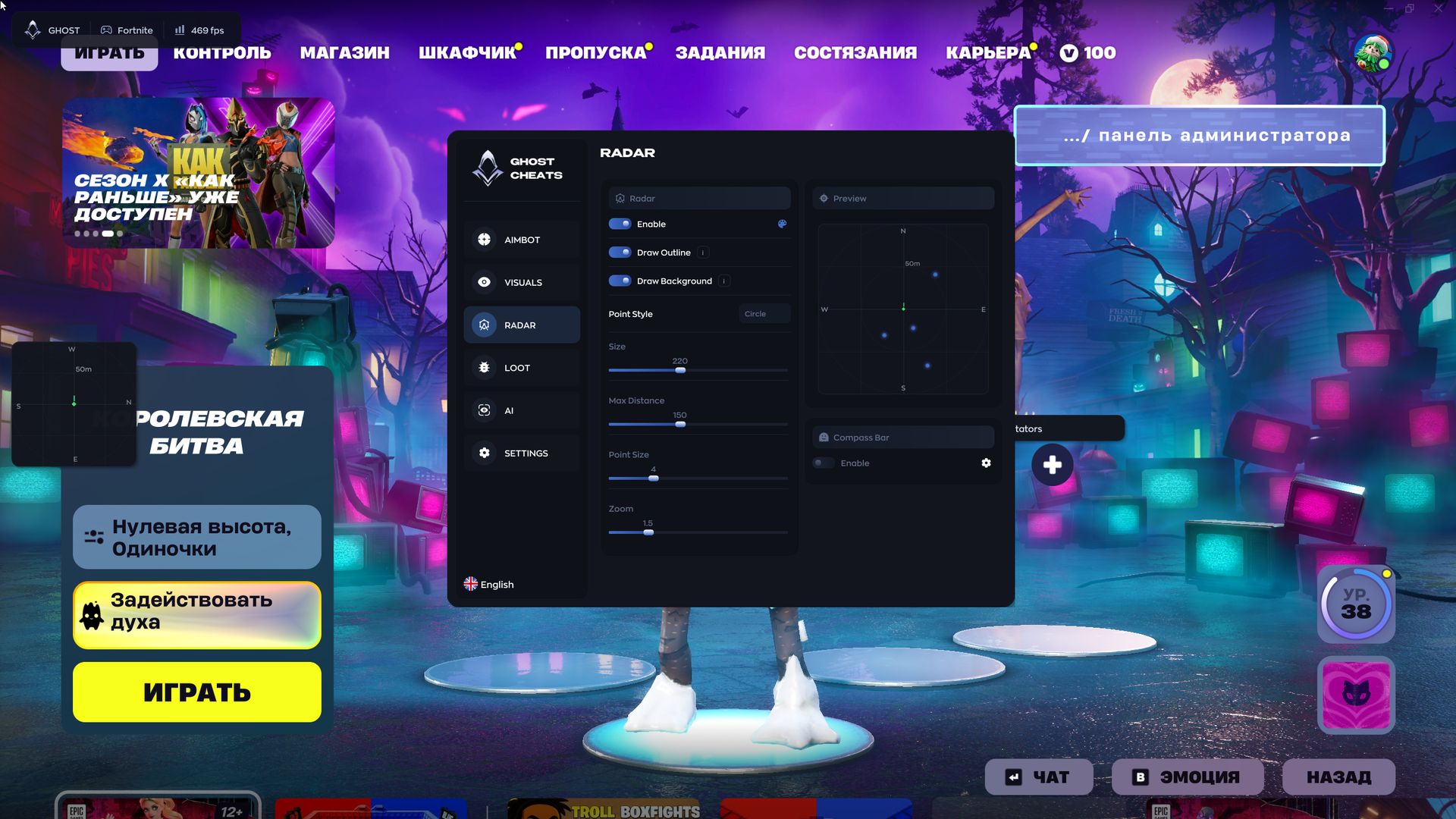
RADAR
- Enable — Turn on the radar.
- Draw Outline — Draw the radar outline.
- Draw Background — Draw the radar background.
- Point Style — Style for displaying points.
- Size — Size of the radar.
- Max Distance — Maximum distance for displaying objects on the radar.
- Point Size — Size of the points on the radar.
- Zoom — Radar zoom level.
- Compass Bar — Enable the compass (directional bar) within the radar.
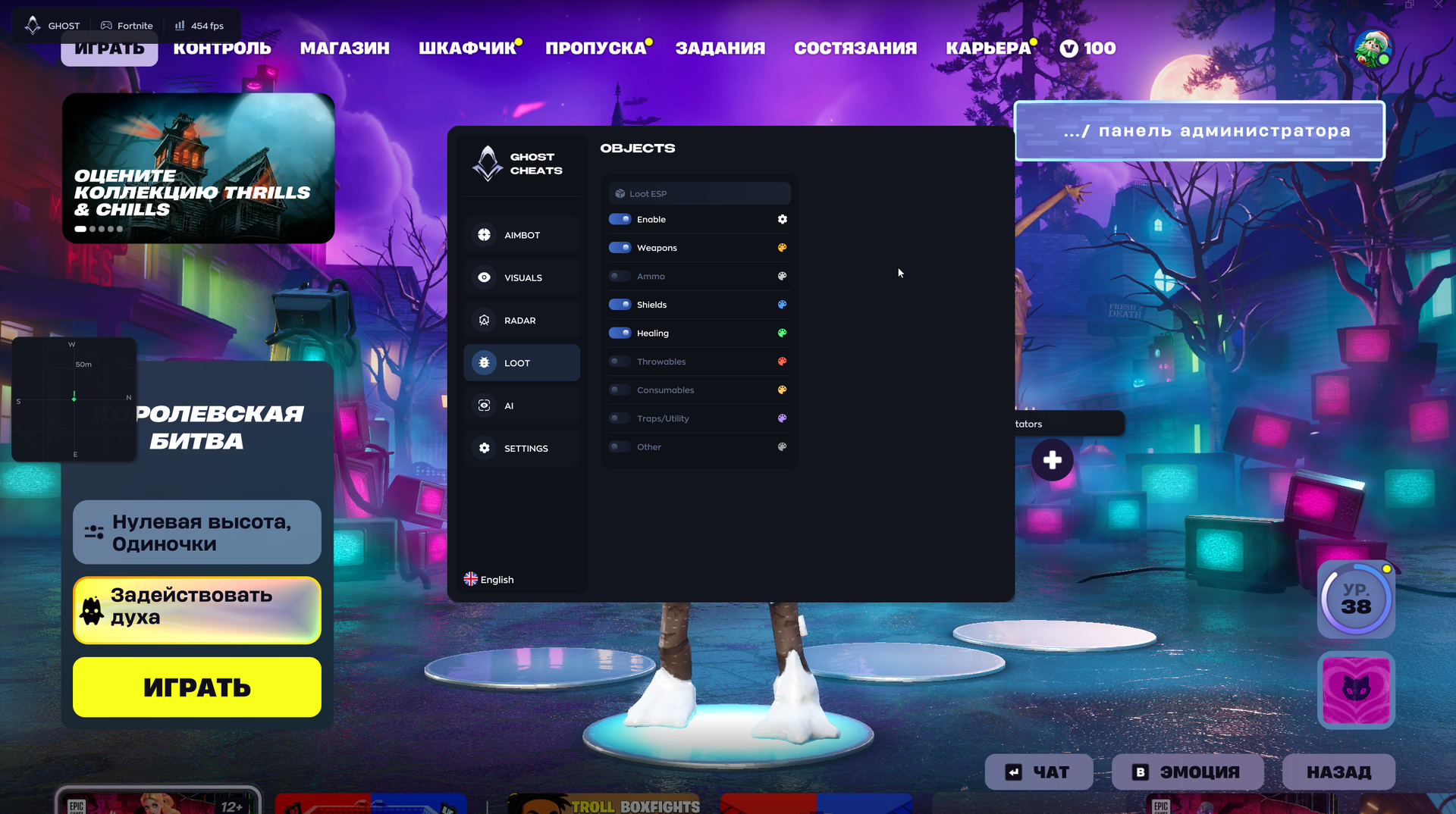
LOOT
- Enable — Enable loot highlighting.
- Weapons — Highlight weapons.
- Ammo — Highlight ammo.
- Shields — Highlight shields (green/blue potions).
- Healing — Highlight medkits and bandages.
- Throwables — Highlight grenades and throwable items.
- Consumables — Highlight consumables (fish, bananas, etc.).
- Traps/Utility — Highlight traps and utility items.
- Other — Highlight other items.
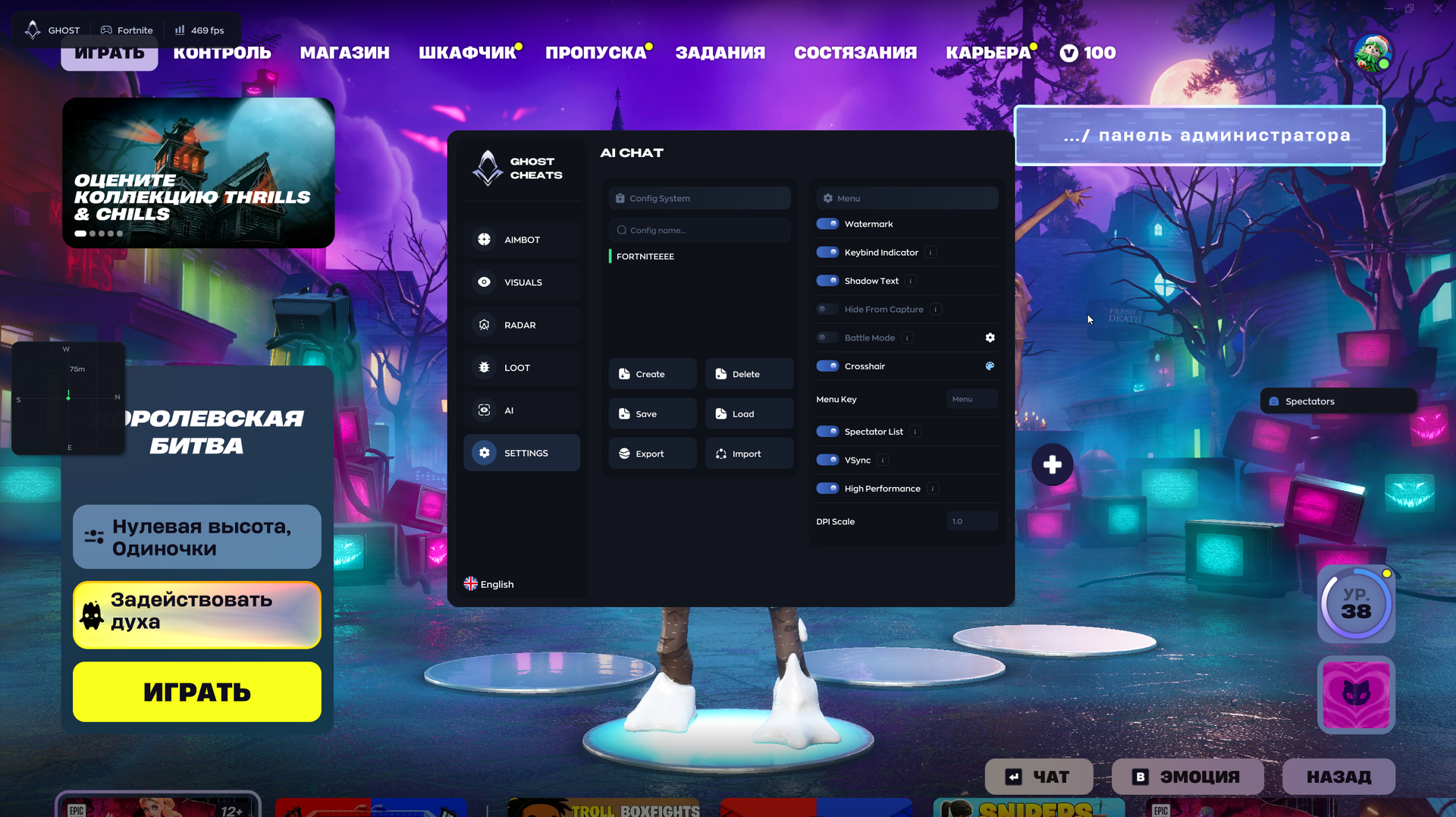
SETTING
- Config System — List of saved configurations
- Create / Delete — Create or delete a configuration.
- Save / Load — Save or load settings.
- Export / Import — Export and import settings (for sharing with other users).
- Watermark — Display a cheat watermark on the screen.
- Keybind Indicator — Show an indicator for pressed keys.
- Shadow Text — Add a shadow to text.
- Hide From Capture — Hide the cheat menu during screen recording, streaming, or when taking screenshots.
- Battle Mode — Disable unnecessary features during combat.
- Crosshair — Built-in crosshair.
- Menu Key — Key used to open the menu (default is "Menu").
- Spectator List — List of spectators (those watching you).
- VSync — Vertical synchronization.
- High Performance — High-performance mode.
- DPI Scale — Scale the interface according to screen resolution.
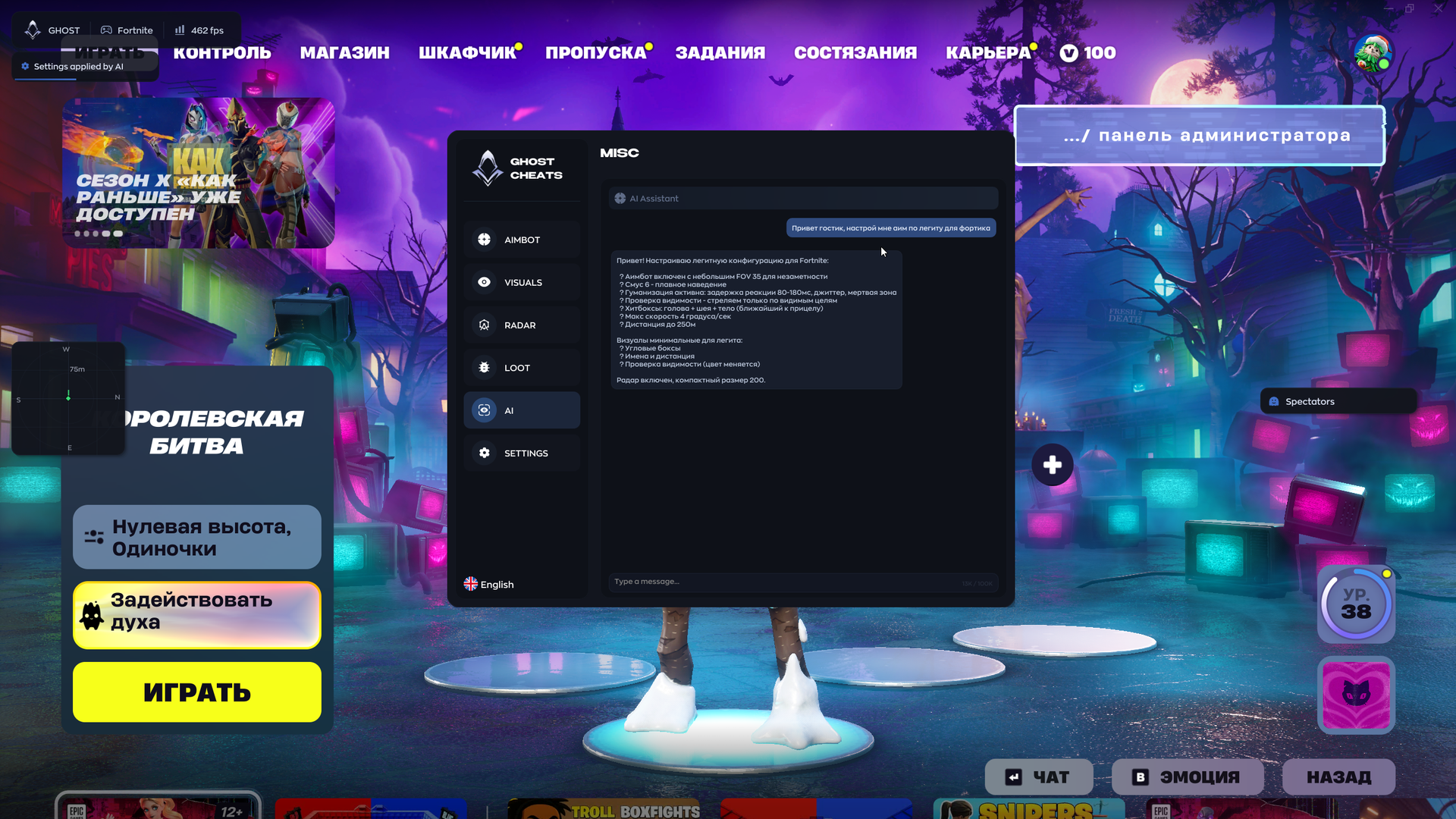
AI CHAT
- AI Assistant — a chat window with a built-in AI that answers questions about cheat settings.
MEDIA