ROB RUN
PRIVATE SOFTWARE
GHOST FULL
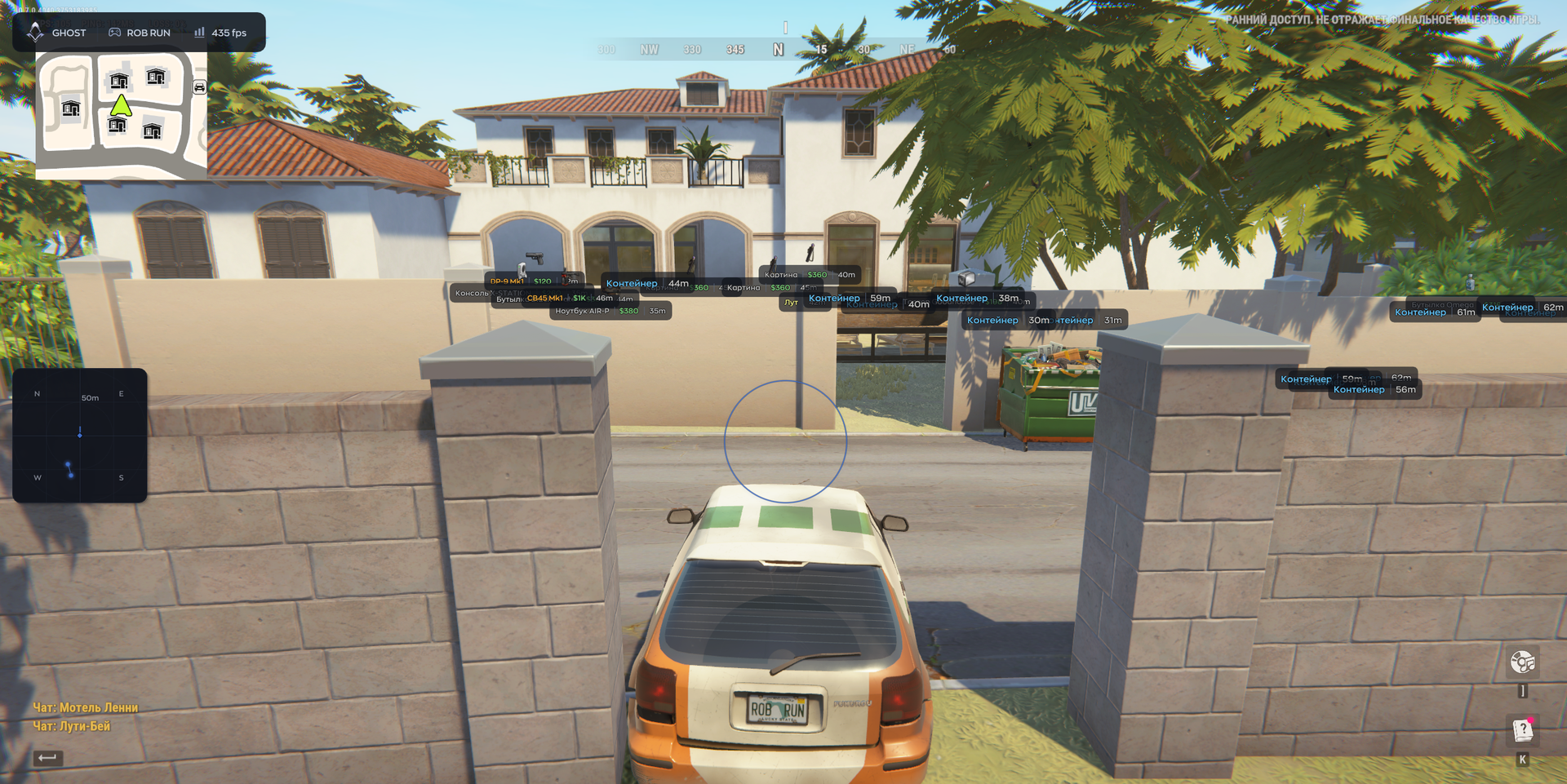
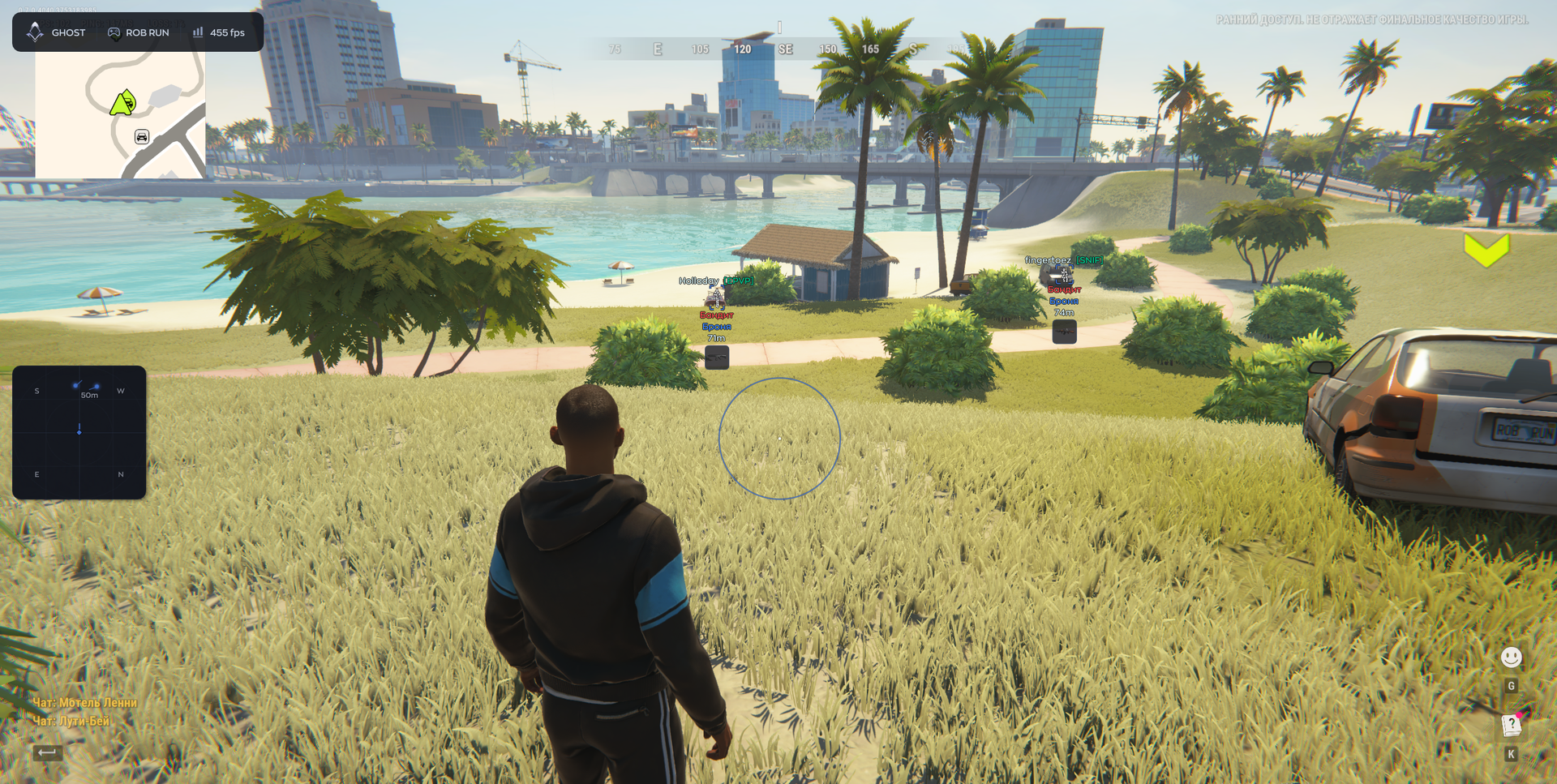
Ghost Full for ROB RUN brings aiming control and situational awareness into one configurable cheat. Player ESP and radar help you follow opponents and decide when to engage, while loot and world-object highlighting give you a clearer idea of where to look for supplies. Tune the aimbot to your preferred approach and save configurations to keep your chosen setup at hand. Read the situation, weigh your options and make your next move with more information in view.
The provider’s demonstration marks Aimbot Enabled, player Visible Check, vehicle Enabled and Legendary loot rarity with “risk!”. These demo warnings are not an assurance against detection or bans.
STATUS
UNDETECTED

FEATURES
AIMBOT
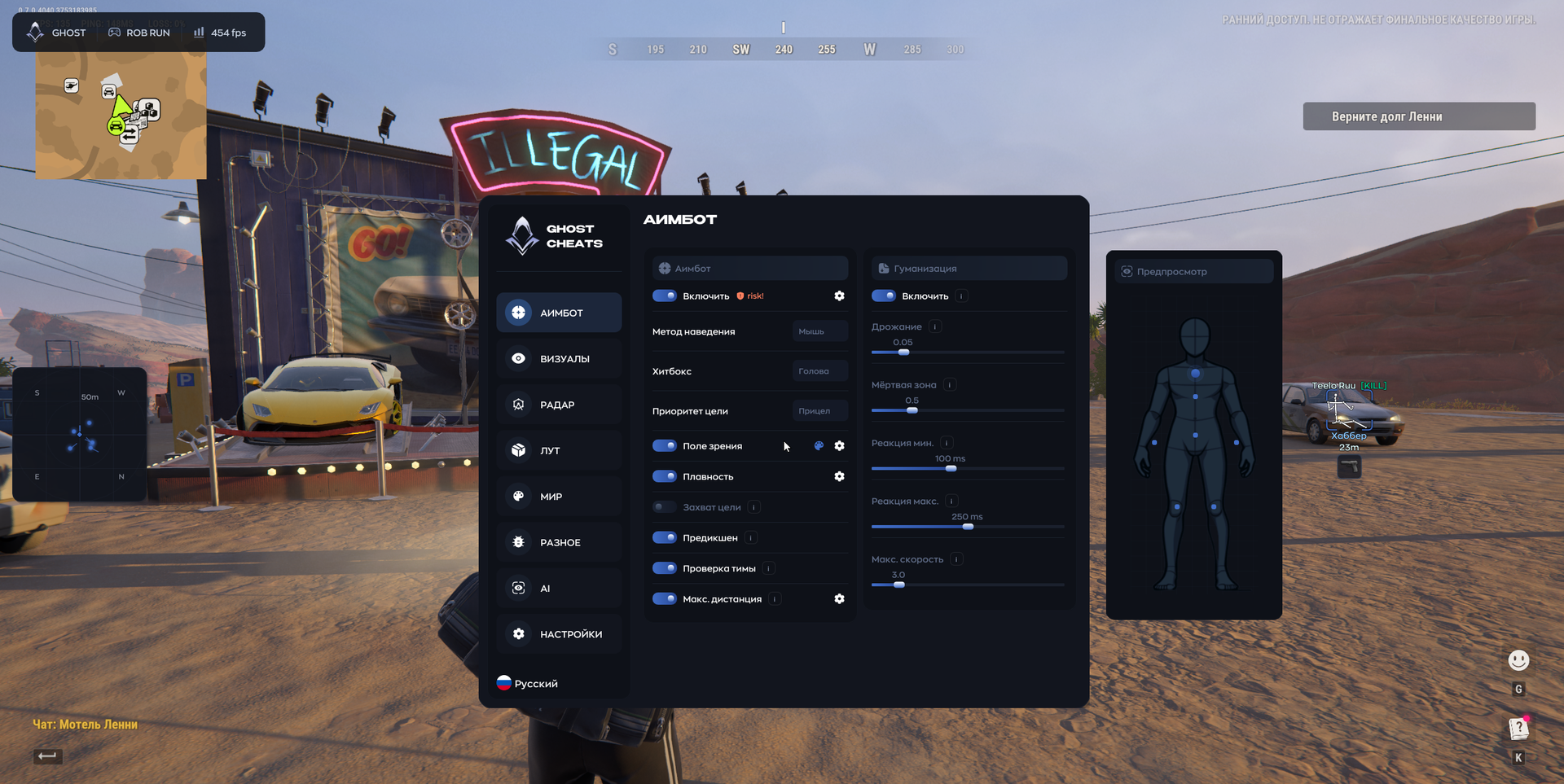
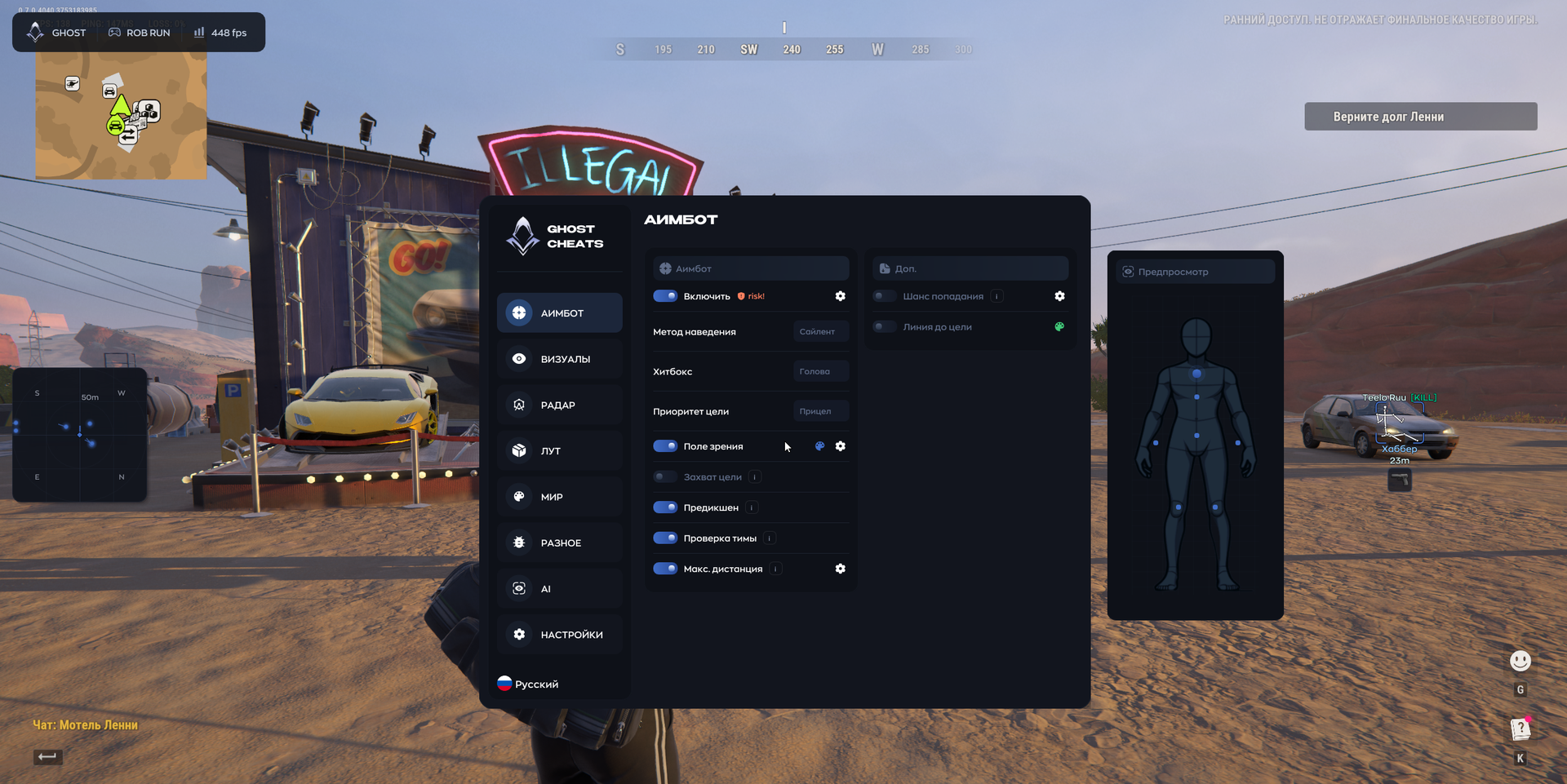
- Enable — Turn aiming assistance on or off.
- Aim Method — Choose Mouse, Silent or Memory aiming.
- Hitbox — Select the body part to aim at.
- Target Priority — Set how targets are prioritized.
- Field of View — Set the radius within which targets can be acquired.
- Smoothness — Adjust aiming smoothness.
- Target Lock — Keep tracking a target after it leaves the field of view.
- Prediction — Account for target movement when leading shots.
- Team Check — Ignore teammates and friends when aiming.
- Max Distance — Limit the distance at which aiming assistance works.
- Shake — Add small crosshair movements while aiming.
- Dead Zone — Set a radius around the target in which automatic crosshair movement stops.
- Min Reaction / Max Reaction — Set the delay before aiming begins.
- Max Speed — Cap the camera turning speed.
- Hit Chance — Set the chance of an intentional miss.
- Line to Target — Draw a line from the crosshair to the target.
- Preview — Open the preview window.
VISUALS
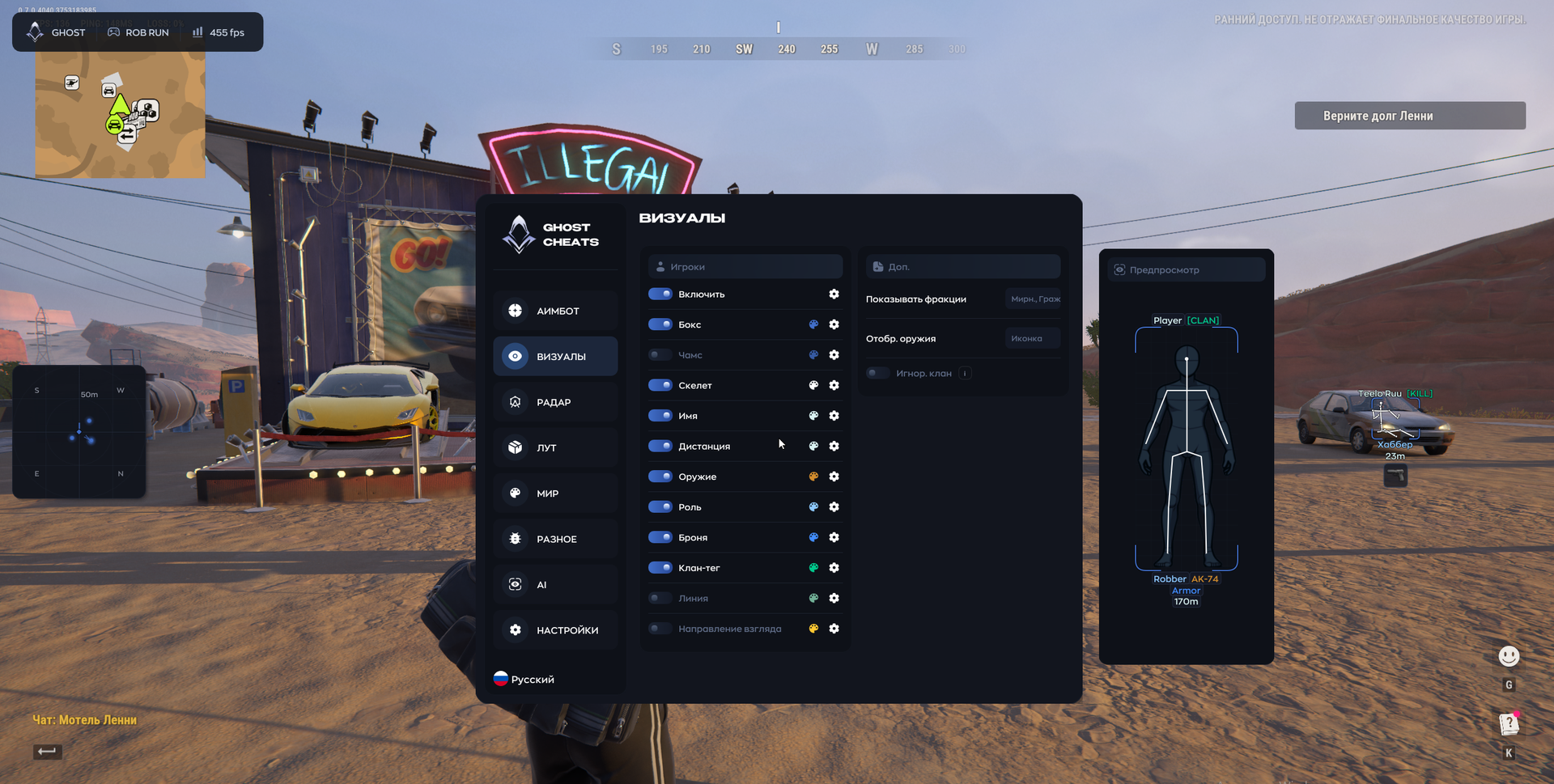
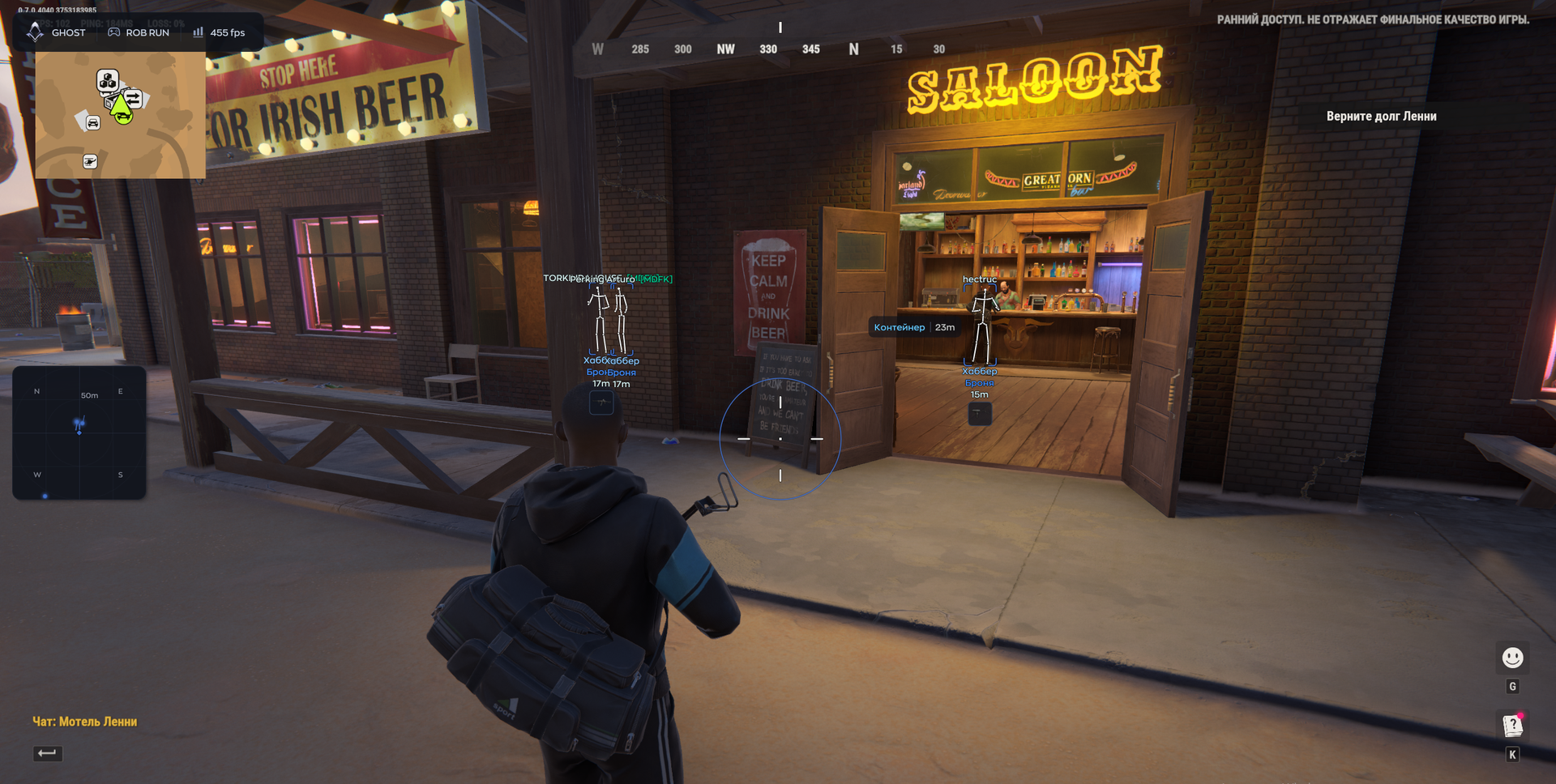
- Box — Draw a rectangle around each player model.
- Chams — Apply a solid color to player models.
- Skeleton — Show player skeletons.
- Name — Display player nicknames.
- Distance — Show distance to players.
- Weapon — Show players’ weapons.
- Role — Display the player’s in-game role or profession.
- Armor — Show armor presence and level.
- Clan Tag — Show clan or faction tags.
- Line — Draw a line from the screen edge or bottom to a player.
- View Direction — Show the direction a player is looking.
- Show Factions — Filter what is displayed.
- Weapon Selection — Display weapons as icons or text.
- Ignore Clan — Exclude selected clans or tags.
- Preview — Preview visual settings on a model.
RADAR
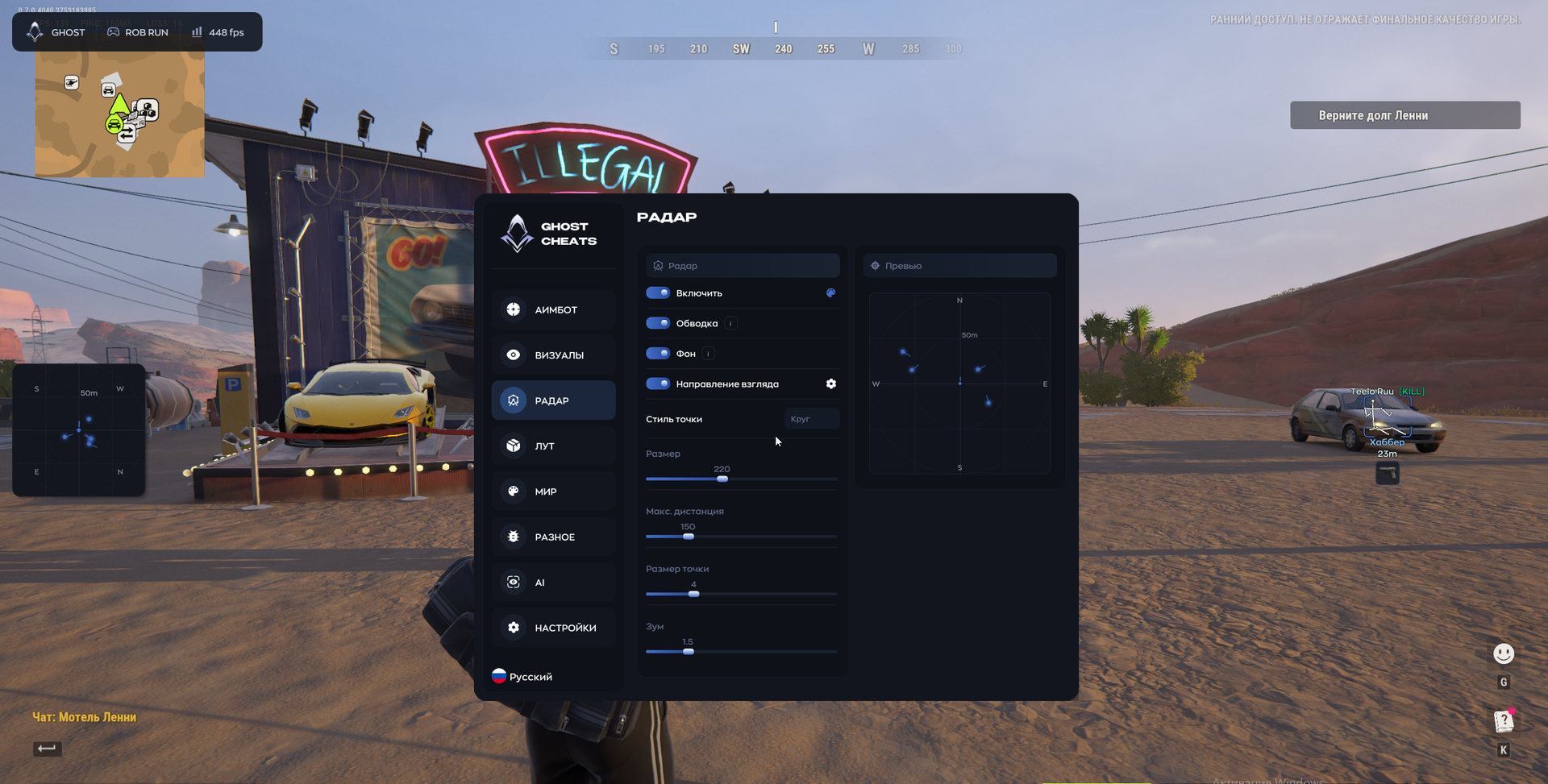
- Outline — Add a border to the minimap.
- Background — Toggle the radar background.
- View Direction — Show where other players are looking.
- Dot Style — Choose the shape of player markers.
- Size — Adjust the radar widget’s overall screen size.
- Max Distance — Limit the distance at which players appear on radar.
- Dot Size — Adjust player marker size.
- Zoom — Zoom the map inside the radar in or out.
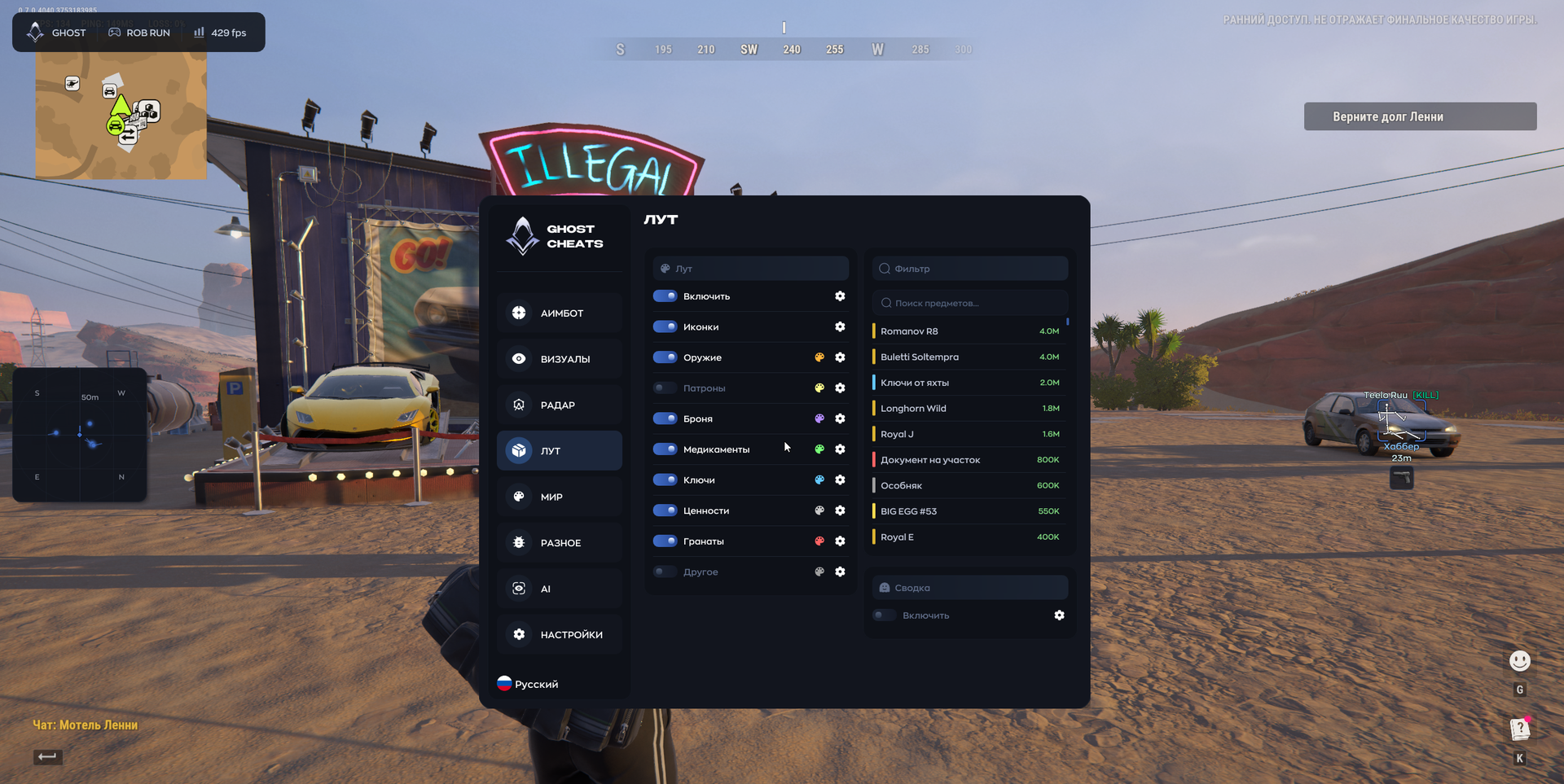
LOOT
- Icons — Use item icons instead of text.
- Weapon — Show weapons on the map.
- Ammo — Show ammunition.
- Armor — Show armor.
- Medications — Show medkits and medical supplies.
- Keys — Show keys.
- Valuables — Show valuable items.
- Grenades — Show grenades.
- Other — Show other loot categories.
- Filter / Search Items — Search for specific items to select.
- Summary / Enable — Open a separate list of all found loot.
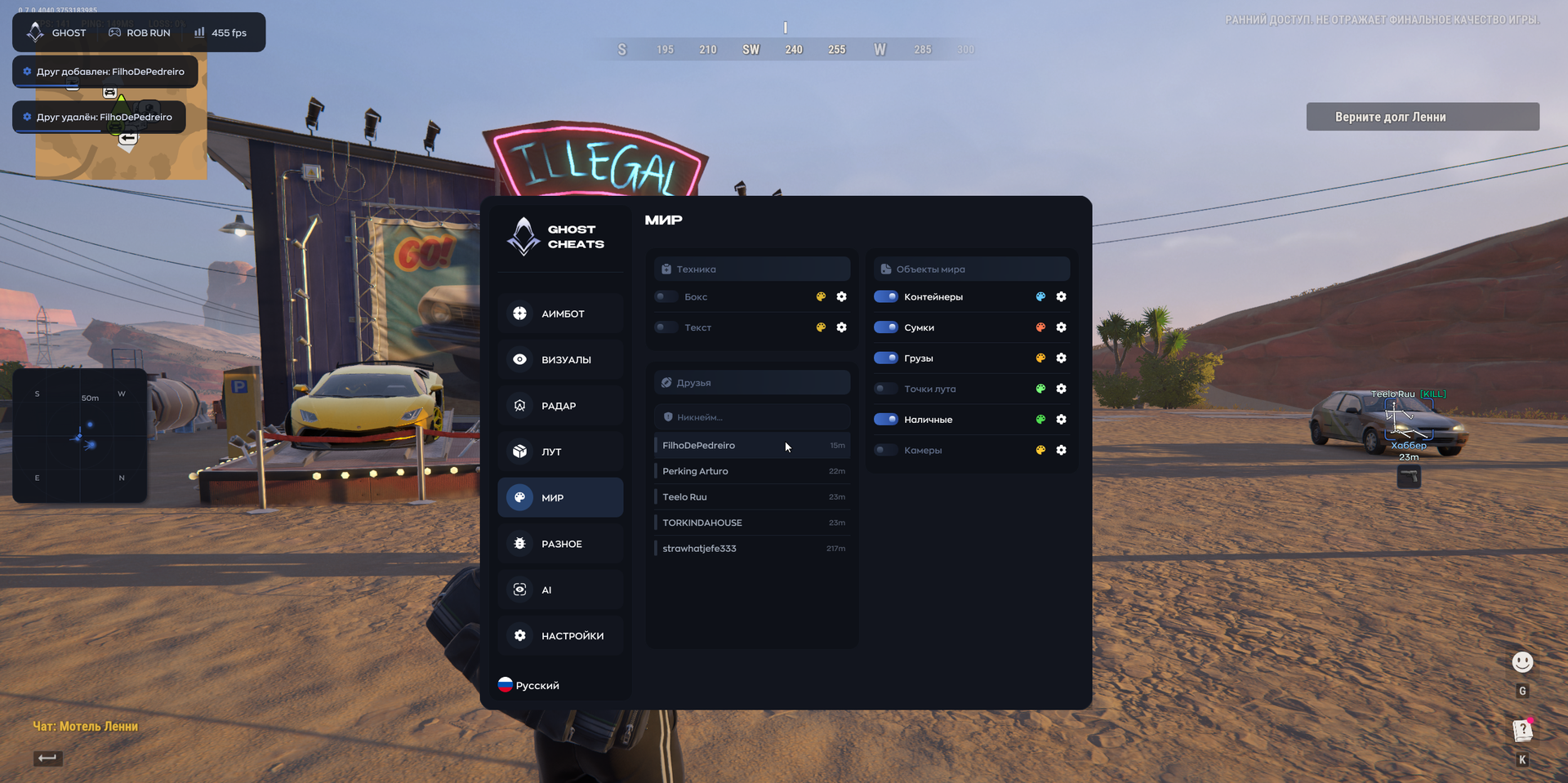
WORLD
- Vehicles
- Box — Draw a box around vehicles.
- Text — Show vehicle names and distance.
- Friends — List friends and their distance.
- World Objects
- Containers — Highlight containers.
- Bags — Highlight bags.
- Cargo — Highlight cargo.
- Loot Spots — Show loot spawn points.
- Cash — Highlight dropped money.
- Cameras — Highlight surveillance cameras.
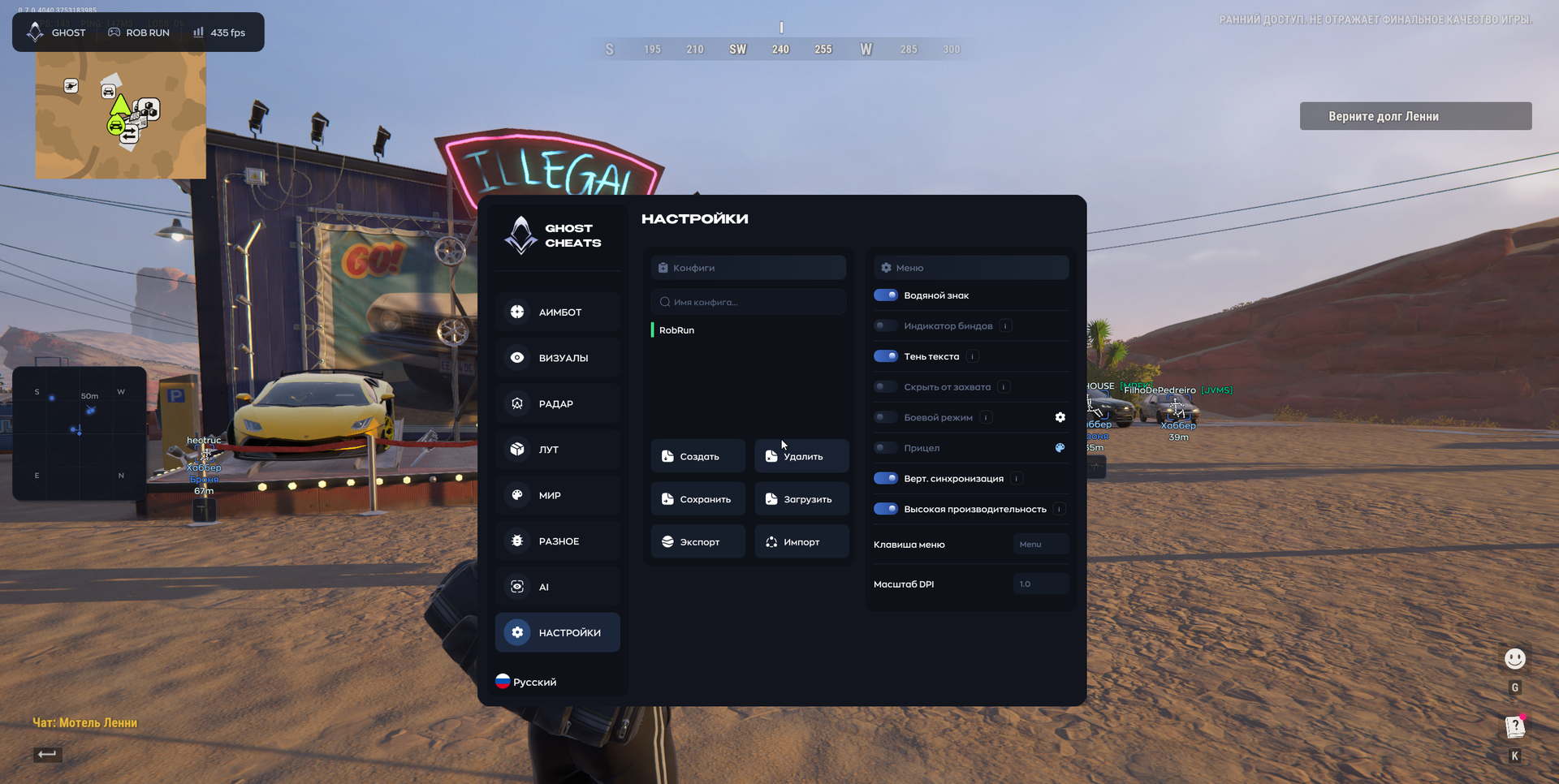
SETTINGS
- Create — Create a configuration.
- Delete — Delete the selected configuration.
- Save — Save current settings to a configuration.
- Load — Load settings from the selected configuration.
- Export — Export a configuration to a file.
- Import — Import a configuration from a file.
- Watermark — Display the cheat’s logo on screen.
- Binds Indicator — Show pressed keys on screen.
- Text Shadow — Toggle interface text shadows.
- Hide from Capture — Hide the menu from screenshots and streams.
- Combat Mode — Hide the menu with a specified key.
- Crosshair — Enable a custom crosshair.
- V-Sync — Enable vertical synchronization.
- High Performance — Menu optimization option described by the provider as intended to improve FPS.
- Menu Key — Set the menu open/close key.
- DPI Scale — Adjust the size of menu elements.
AI CHAT
- AI Assistant — Built-in chatbot for questions and menu help.
MEDIA