ROB RUN
PRIVATE SOFTWARE
Stealth
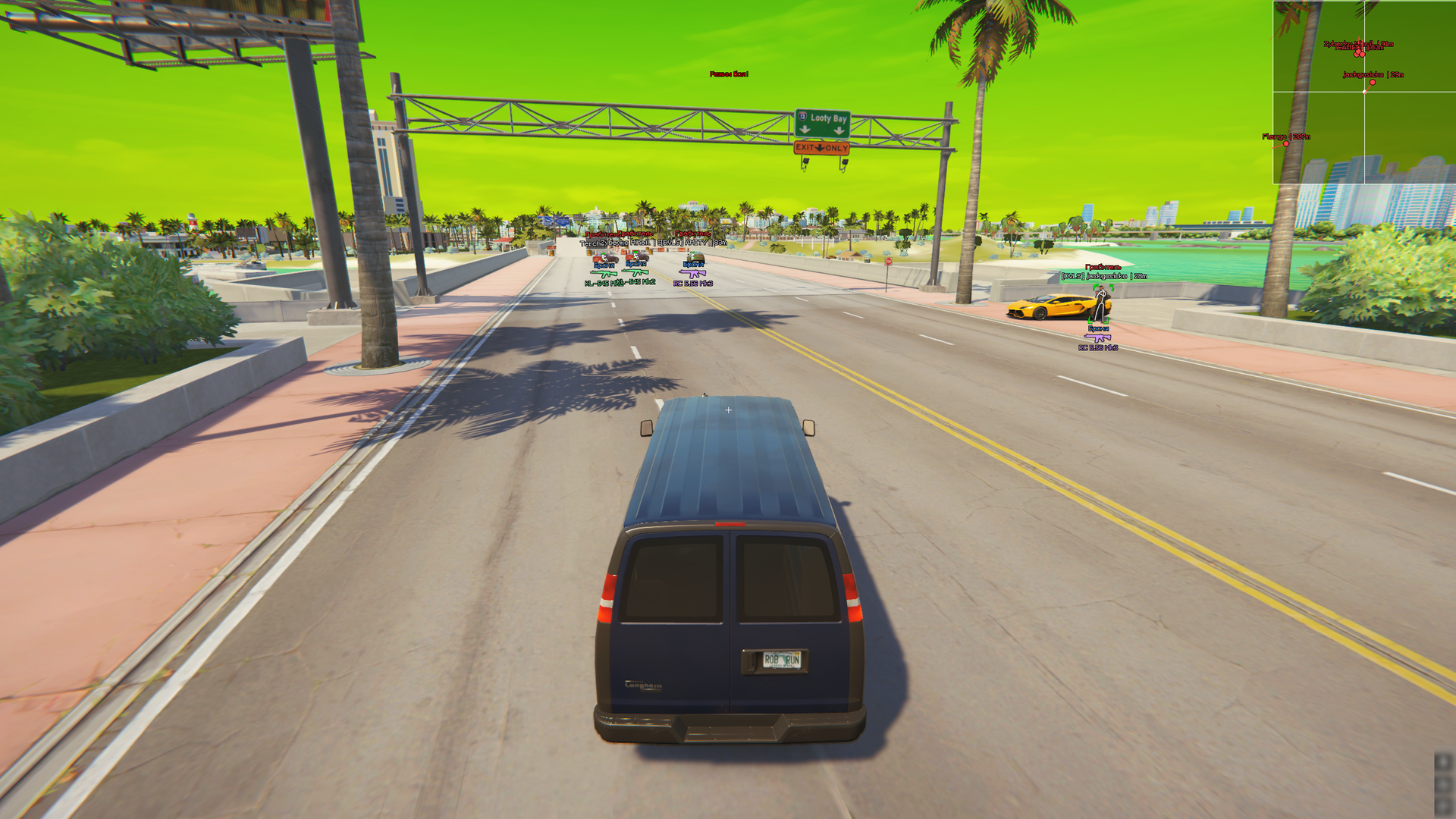
Stealth for ROB RUN gives you more information before you move and more control when you aim. Player ESP and radar help you keep track of opponents, while loot and cargo markers help you decide where to look for supplies. When you choose to engage, tune the aimbot to the targets and distances you want it to cover. Read the situation first, then choose whether to move in or look elsewhere.
STATUS
UNDETECTED
FEATURES
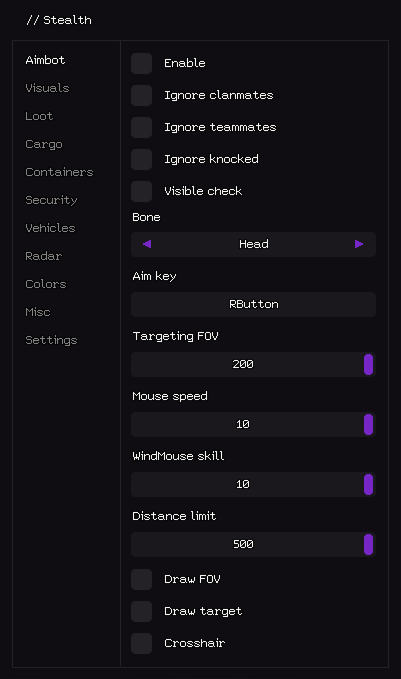
AIMBOT
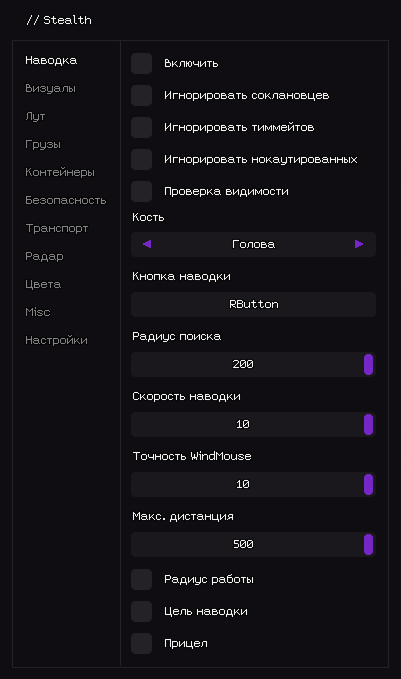
- Enable aimbot — enables automatic aiming at the selected target.
- Ignore clanmates — does not target players from your clan.
- Ignore teammates — does not target your teammates.
- Ignore knocked players — skip knocked-down opponents.
- Visibility check — target only opponents in direct line of sight.
- Bone selection — aim point: head, chest, pelvis or nearest bone.
- Aim key — key held to activate aiming.
- Targeting FOV — screen area where a target is searched.
- Mouse speed — speed at which the crosshair moves to the target.
- WindMouse skill — adjust the smoothness and precision of mouse movement.
- Distance limit — maximum distance to the target for aiming.
- Draw FOV — draws the FOV circle on screen.
- Draw target — highlights the current target.
- Crosshair — displays a custom crosshair.
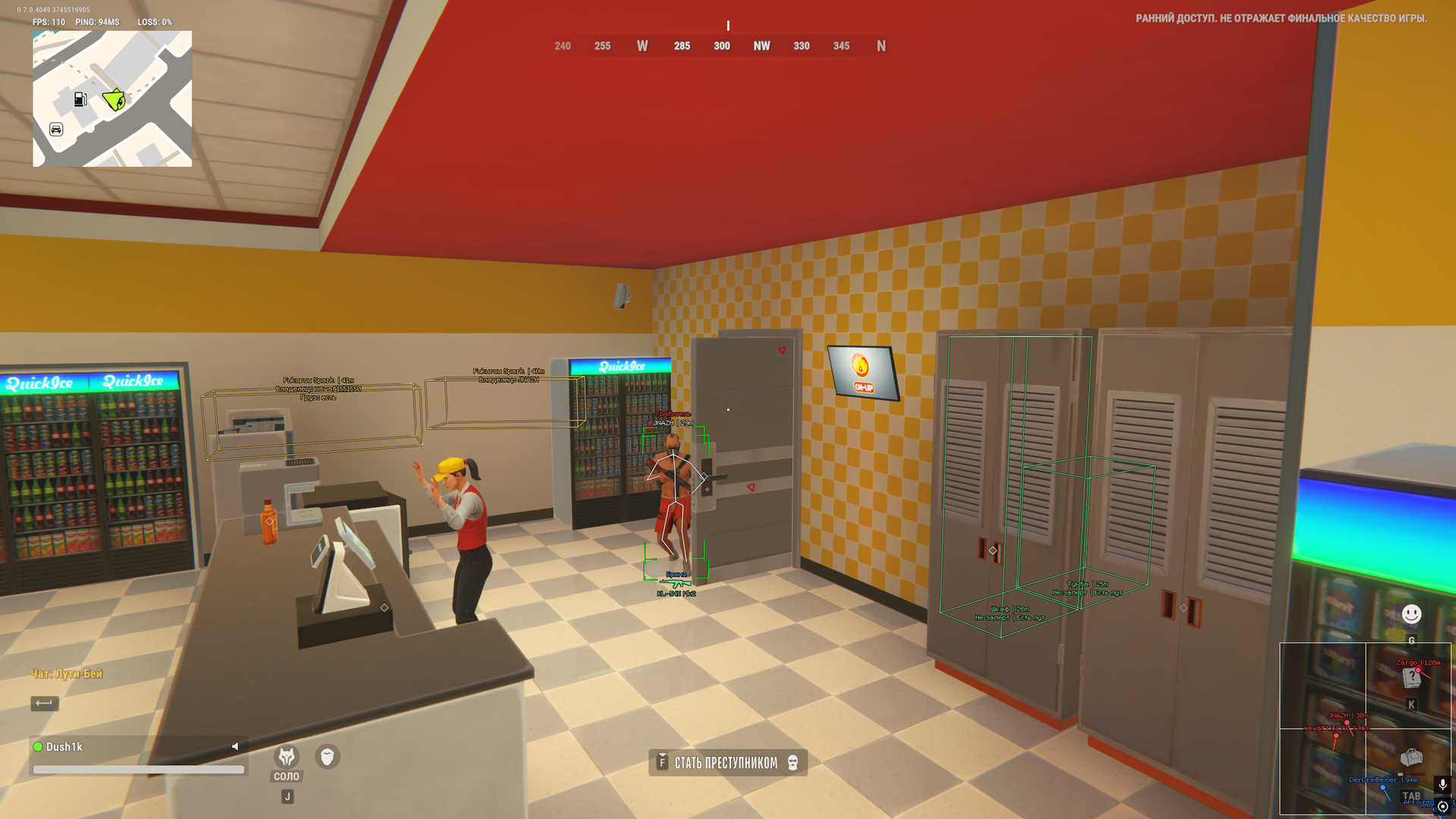
PLAYER ESP
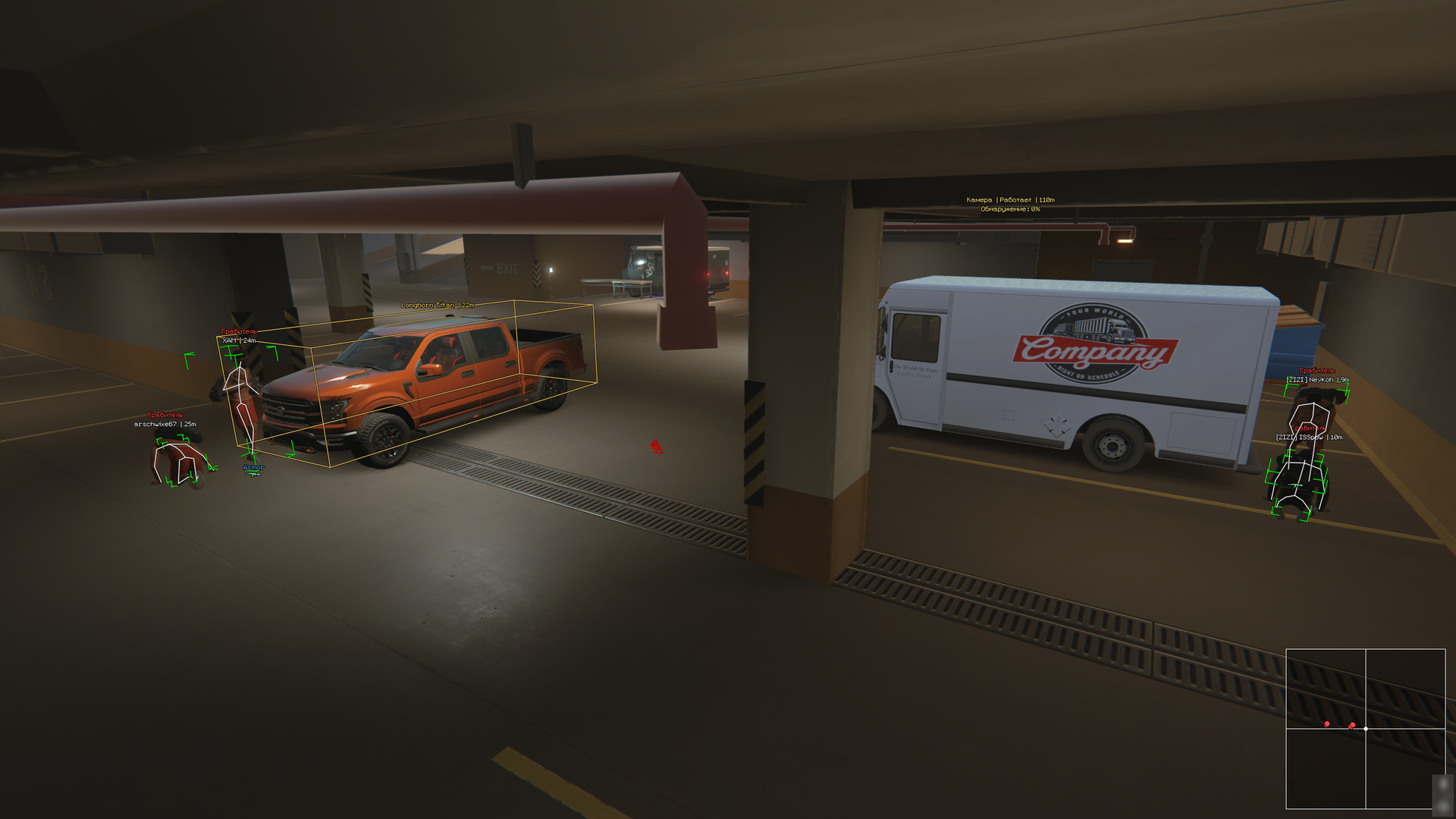
- Player box — draw a frame around a player.
- 3D corner box — volumetric corner box around the model.
- Skeleton — display player bones.
- Nickname — shows the player's name.
- Player role — shows the player's role/class.
- Clan — shows the player's clan.
- Group — shows the player's group/squad.
- Hide teammates — does not display teammates.
- Health — shows HP.
- Armor — shows armor level.
- Player distance — distance to the player.
- Held item — display of the held item: icon, text or icon + text.
- Thrown grenades — shows grenades in flight.
- Grenade radii — draws grenade damage radius.
- Grenade timers — shows time until grenade explosion.
- Separate grenade distance — separate draw distance for grenades.
- Off-screen arrows — point toward objects outside the screen.
- Arrow visibility check — arrows only for visible targets.
- Arrow distance — maximum distance for arrows.
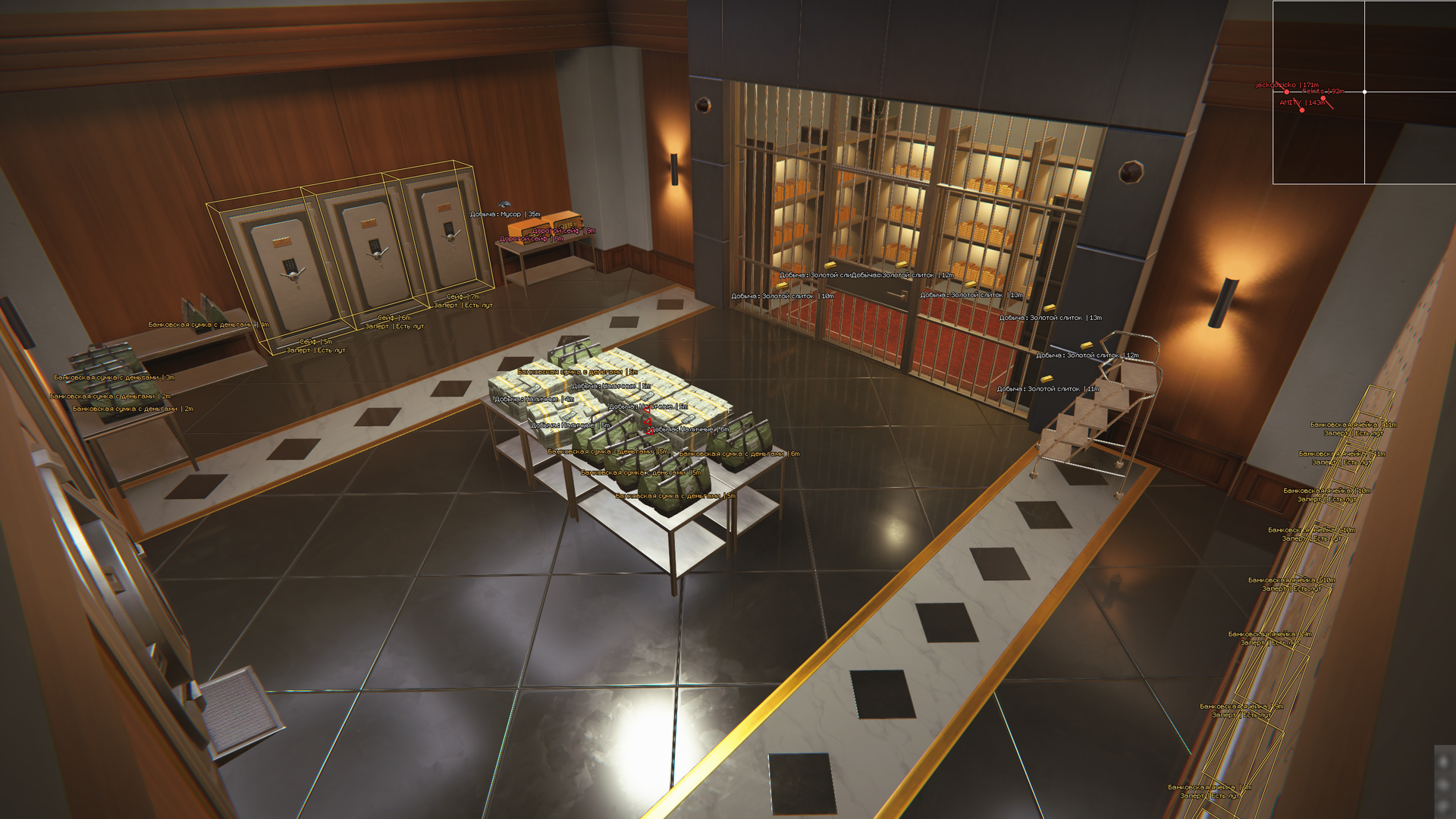
LOOT
- World items — highlight items in the world.
- Resource nodes — show all resource nodes without a rarity filter.
- Loot bags — displays loot bags.
- Loot distance — maximum loot draw distance.
- Display format — show loot as icons, text or both.
- Minimum item rarity — filter by minimum rarity.
- ATMs — displays ATMs.
- ATM 3D boxes — volumetric ATM boxes.
- Cash piles — displays cash piles.
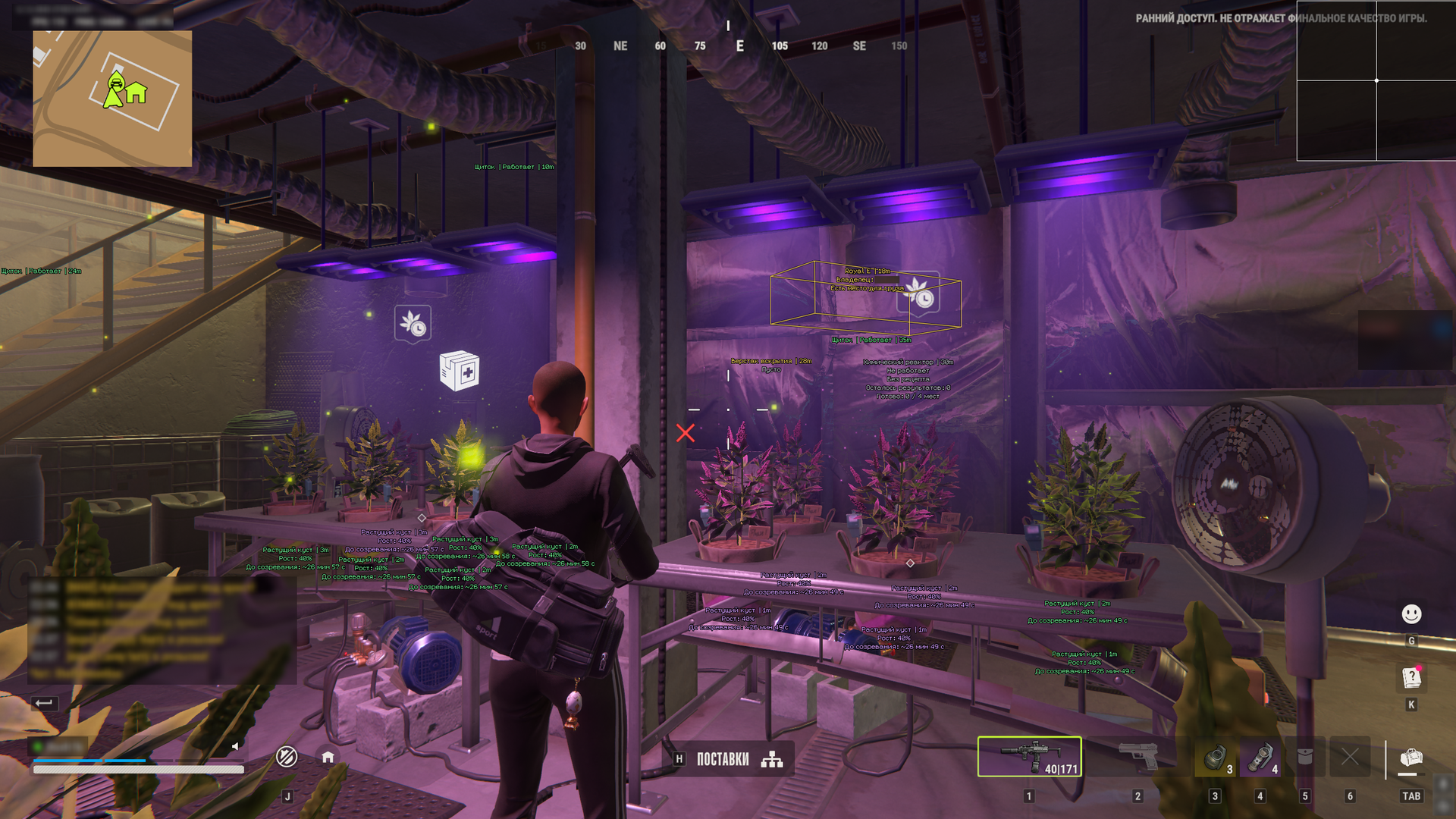
- Plants — displays plants.
- Growth status — plant growth stage.
- Safes — displays safes.
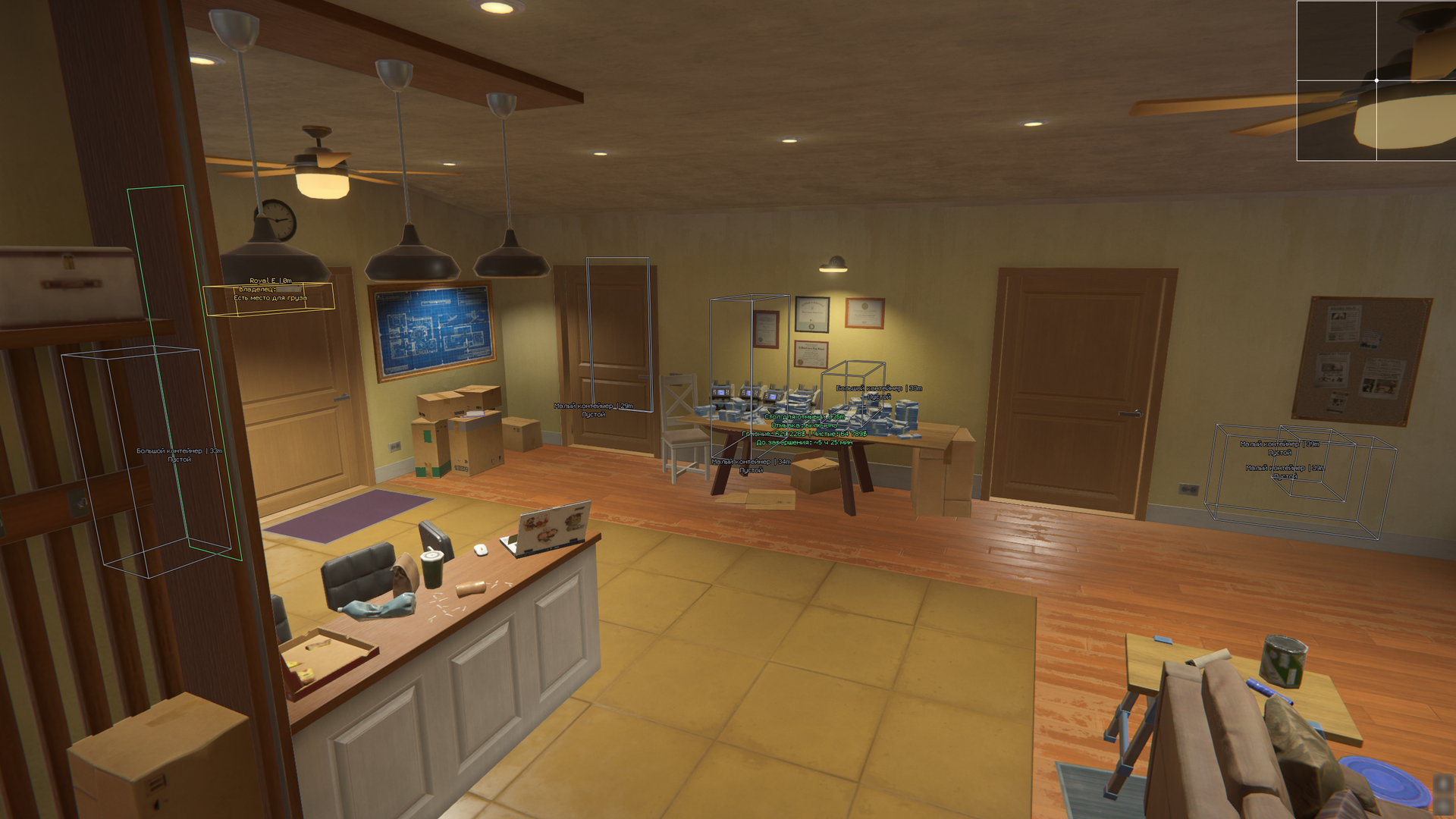
- Laundering tables — displays money laundering tables.
- Per-category draw distance — separate draw distance for each loot category.
CARGO
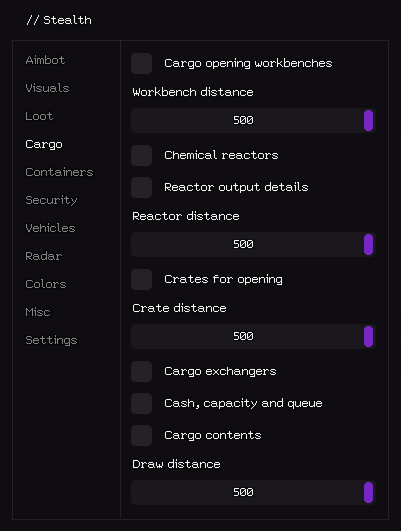
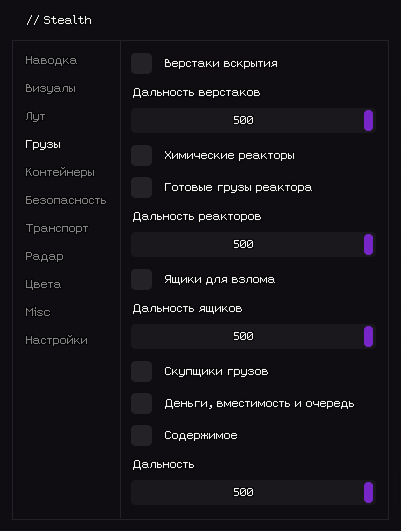
- Cargo opening workbenches — displays workbenches for opening cargo.
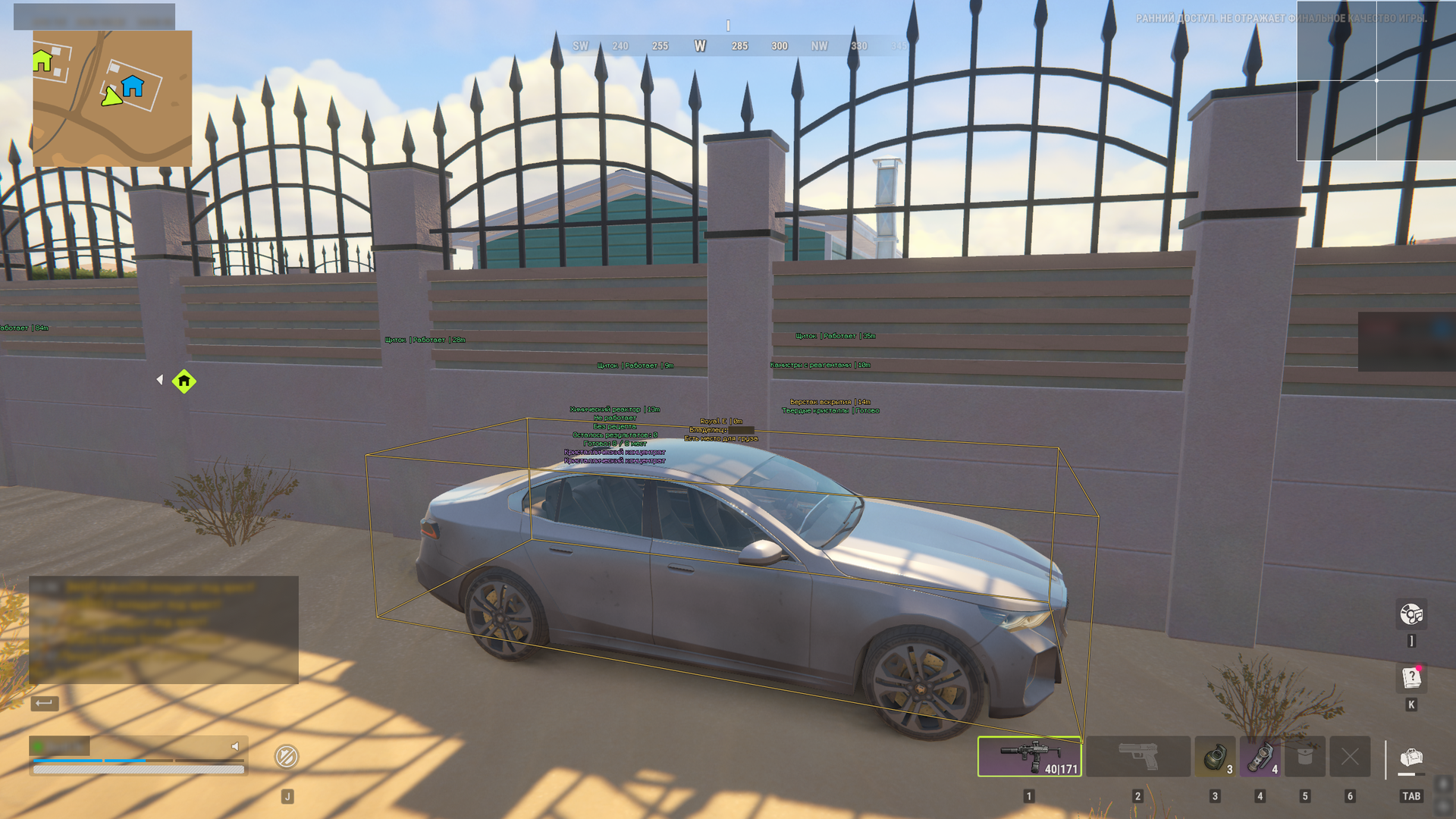
- Chemical reactors — displays reactors.
- Reactor output details — shows reactor output.
- Crates for opening — displays crates that require opening.
- Cargo exchangers — displays exchanger points.
- Buyer cash and queue — show the cash and queue at the buyer.
- Cargo contents — shows cargo contents.
- Per-category draw distance — separate draw distance for each category.
CONTAINERS
- Container ESP — highlight containers.
- 3D bounds — volumetric container bounds.
- Container details — show states such as open or closed.
- Hide empty containers — does not display empty containers.
- Draw distance — maximum container draw distance.
SECURITY SYSTEMS
- Defense panels — displays defense panels.
- Alarms and alarm status — shows alarms and their status.
- Guards — displays guards.
- Guard state — guard status.
- Cameras — displays cameras.
- Camera state and detection — camera status and detection state.
- Camera view direction — shows the camera's view direction.
- Active camera detection zones — draw the detection zones of working cameras.
- Camera distance — maximum camera draw distance.
- Shared security draw distance — single draw distance for the security section.
VEHICLES
- Cars — displays cars.
- Helicopters — displays helicopters.
- Vehicle distance — maximum vehicle draw distance.
- Vehicle 3D boxes — volumetric vehicle boxes.
- Vehicle details — speed, owner and cargo.
- Car draw distance — separate distance for cars.
- Helicopter draw distance — separate distance for helicopters.
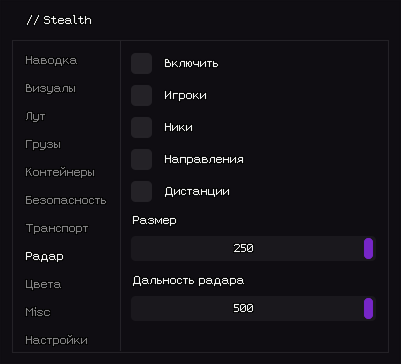
RADAR
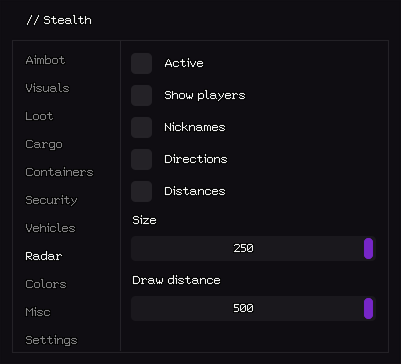
- Enable radar — enables the radar.
- Show players — shows players on the radar.
- Player nicknames — shows nicknames on the radar.
- Player directions — shows player view directions.
- Player distances — shows distance to players.
- Radar size — radar widget size.
- Radar draw distance — radar display radius.
VIEW & UTILITIES
- No flash — removes the flash effect.
- No smoke — removes smoke screens.
- Fast container search — speeds up container searching.
- Override field of view — enable a custom FOV.
- FOV adjustment — FOV value.
- Zoom — camera zoom.
- Zoom key — zoom key.
- Free camera — free camera mode.
- Free camera key — free camera toggle key.
- Flight speed — free camera movement speed.
- No fog — removes fog.
- No bloom — removes the bloom effect.
- Custom sky color — allows changing the sky color.
- Sky color picker — sky color palette.
SETTINGS
- Russian and English languages — interface language switch.
- Menu key — menu open key.
- Unload key — cheat unload/disable key.
- Battle mode — enables battle mode.
- Battle mode key — assign a key to battle mode.
- Clipboard config export — copies the config to the clipboard.
- Clipboard config import — loads the config from the clipboard.
MEDIA