ROB RUN
PRIVATE SOFTWARE
Phoenix Internal
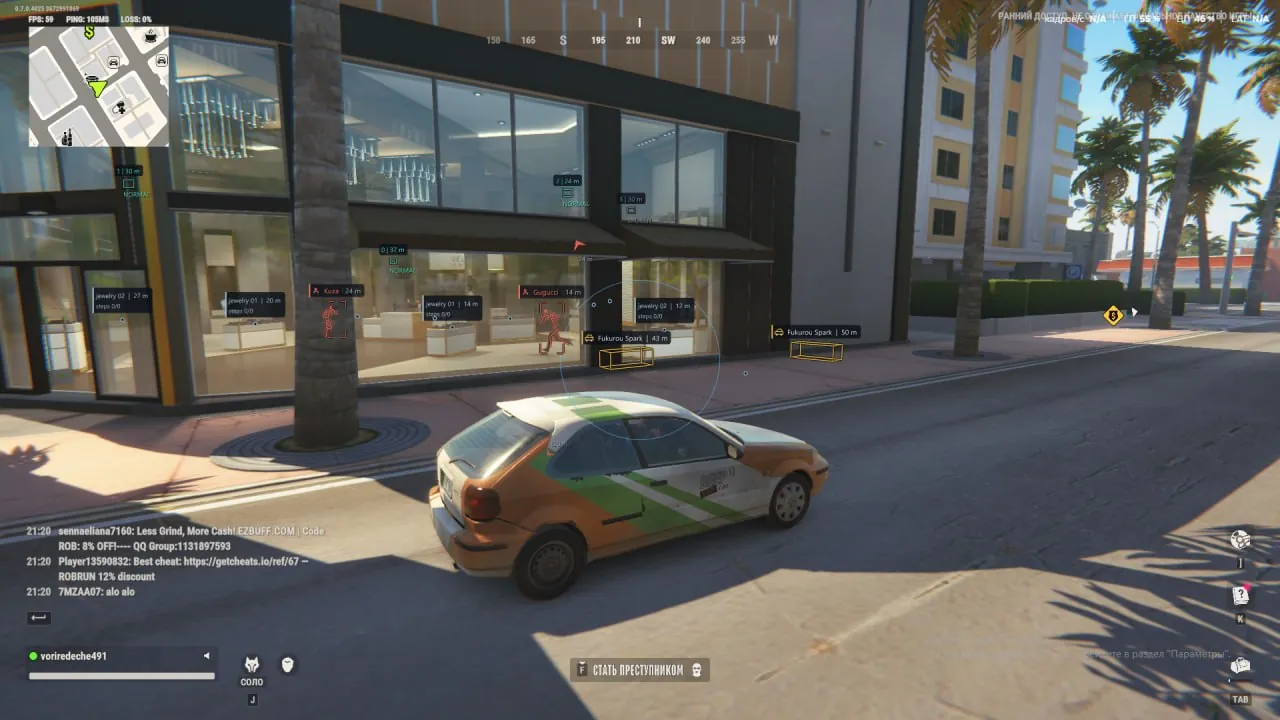
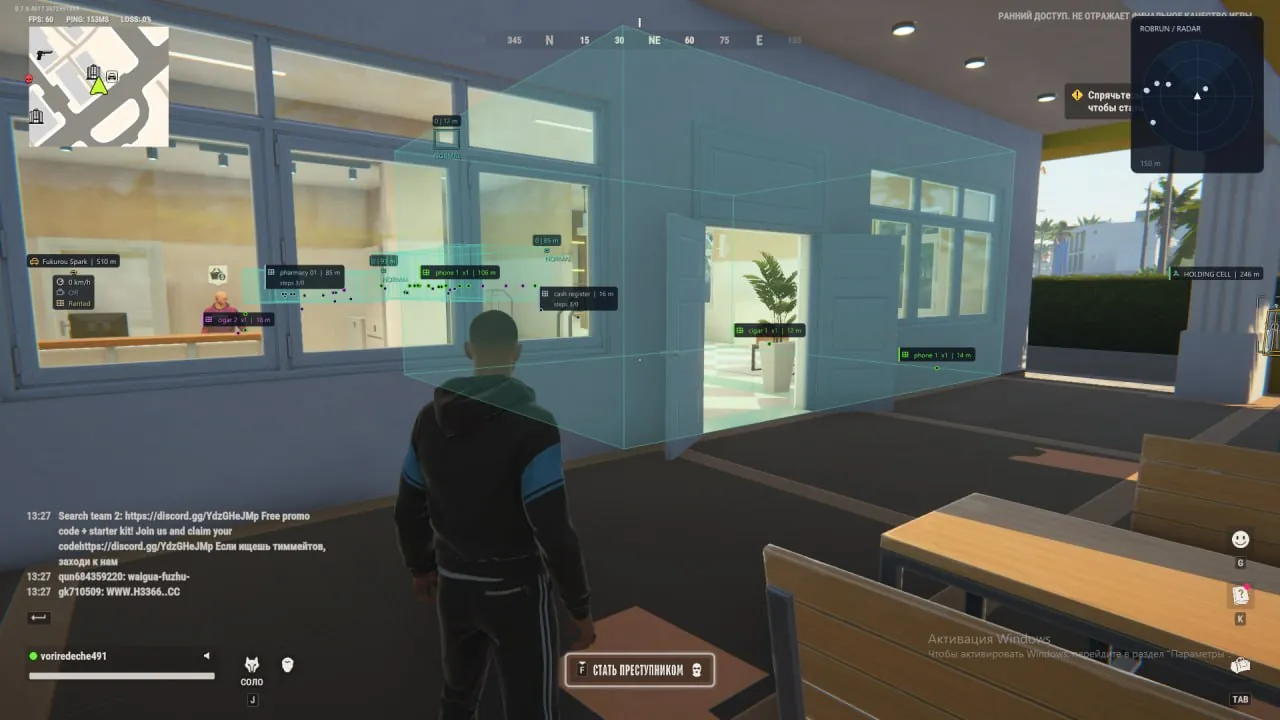
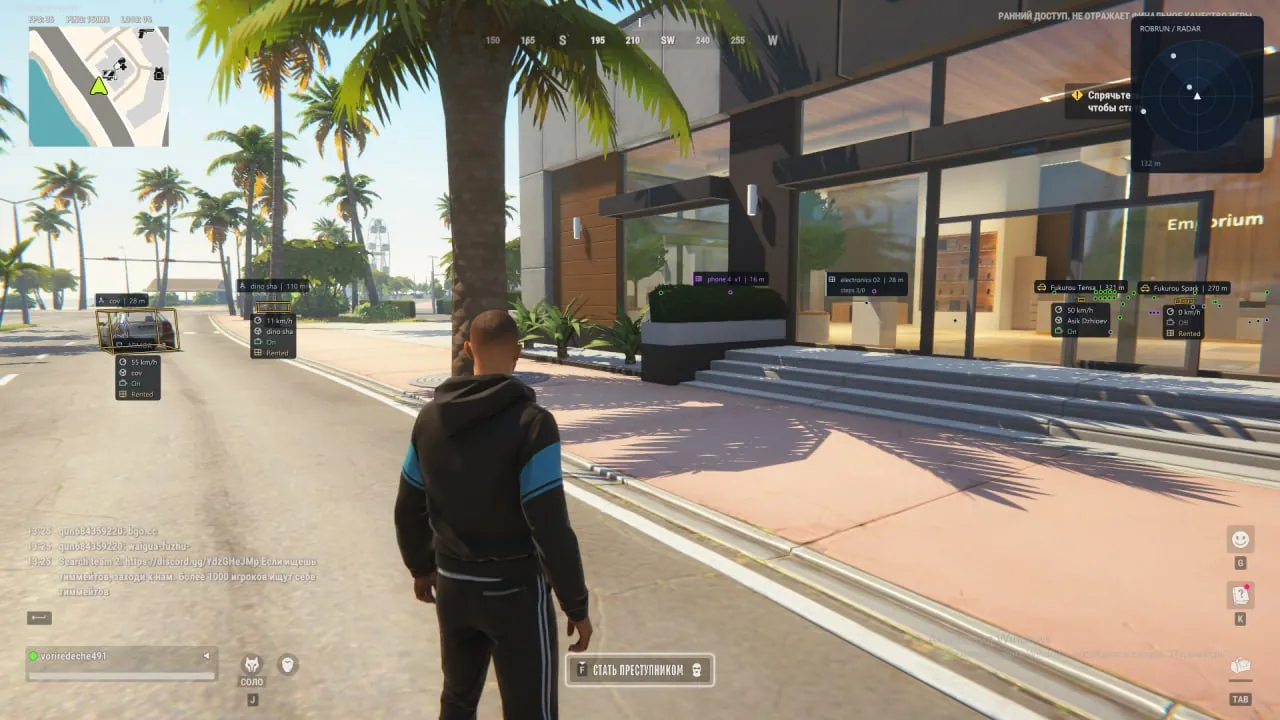
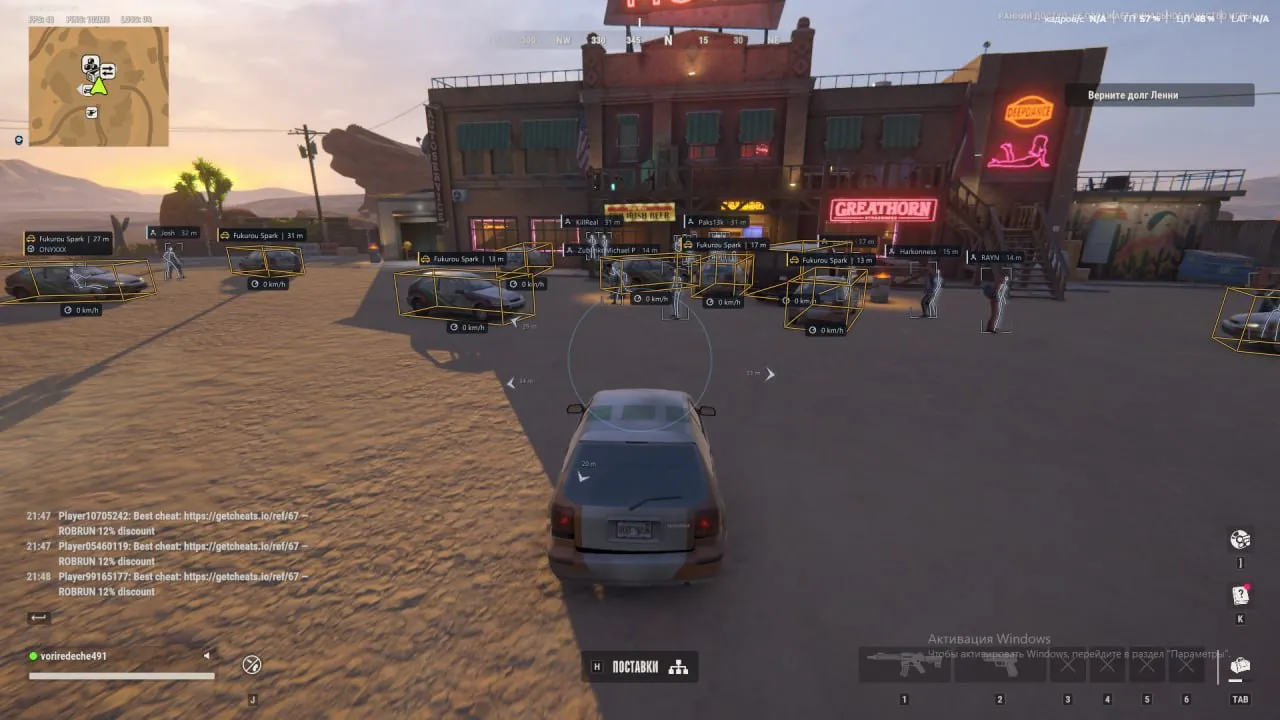
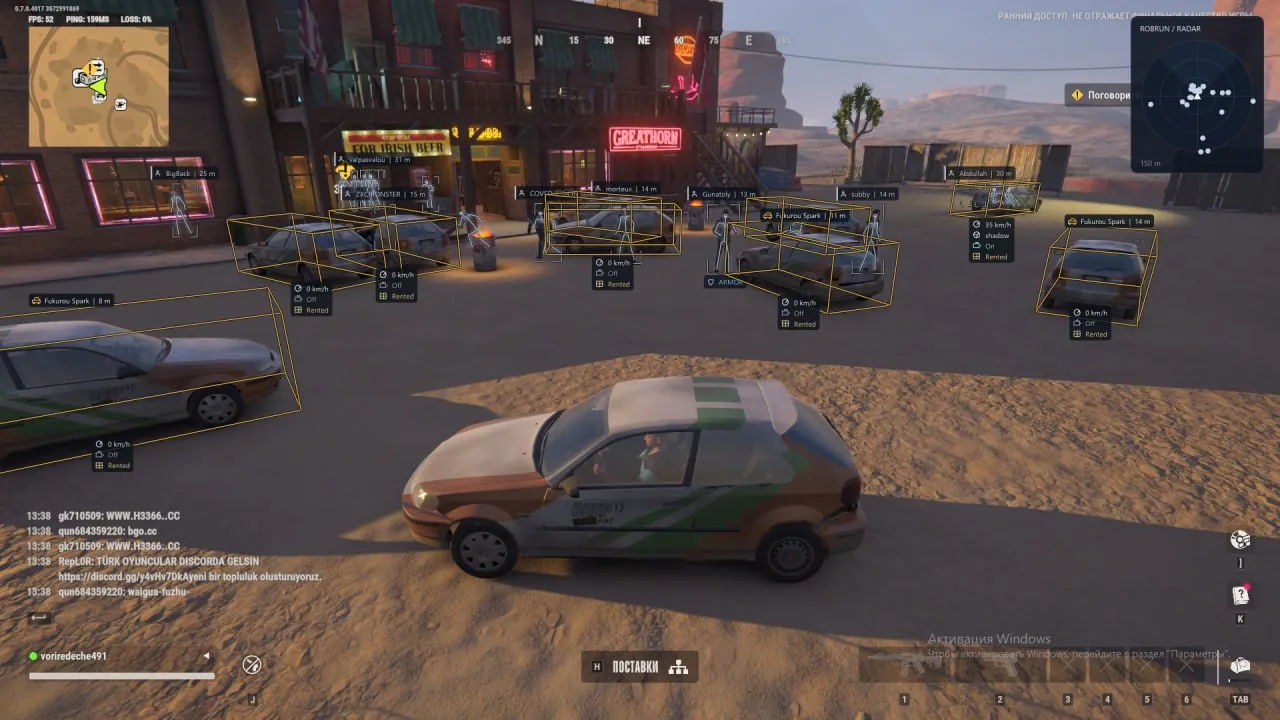
Phoenix Internal for ROB RUN brings aiming control and a broader view of the action into one versatile cheat. Aimbot, player ESP and radar help you follow opponents, assess nearby threats and choose when to engage, while vehicle and loot ESP keep useful transport and supplies in view. Camera detection zones give you another reference for planning your route, and weapon controls let you adjust recoil and sway. Shape the information around your playstyle, keep track of the surrounding action and approach your next encounter with a clearer plan.
STATUS
UNDETECTED

FEATURES
AIMBOT
- Enable — toggle automatic aiming.
- Aim Mode — choose Memory Aim or Silent Aim.
- Keybind — choose the activation key; right mouse button by default.
- Target Categories — select police, robbers, civilians and other target categories.
- Bone Selection — choose head, neck, chest or pelvis.
- Random Bones — pick a random bone from the selected list for each new target.
- Head Chance — adjust the probability of selecting the head when Random Bones is enabled.
- FOV — adjust the target-acquisition radius.
- Draw FOV — display the target-acquisition circle.
- Smooth — adjust crosshair movement smoothing in Memory Aim mode.
- Prediction — lead targets based on their movement speed.
- Lead Time — adjust the lead time used by Prediction.
- Target Priority — prioritize proximity to the crosshair or distance from your character.
- Max Distance — limit the aimbot's operating distance.
- Target Switch Delay — set the delay before switching to another target.
- Team Check — exclude your character and teammates from targeting.
- Ignore Dead — ignore dead players.
- Readiness Check — block aiming while your character is knocked down, dead, recovering or in a vehicle.
ESP
PLAYER ESP
- Enable — toggle player visuals.
- Player Categories — choose which factions appear in ESP.
- ESP Preview — preview the appearance and placement of Player ESP elements.
- Bounding Box — display standard or corner boxes around players.
- Skeleton — display skeletons with line-width, color and maximum-distance controls.
- Head Marker — display a separate marker at the player's head.
- Screen Glow — adjust the color, radius and intensity of screen-space glow around players.
- Name — display the character's in-game name.
- Distance — display the distance to a player.
- Weapon — display available weapon information.
- State — display the character's current state.
- Wanted Status — display available wanted-status information.
- HP Bar — display health as a bar.
- HP Text — display the current health value numerically.
- Armor — display available armor information.
- Snaplines — draw lines from a chosen screen point to players.
- Hide Self — hide your character's visuals.
- Hide Team — hide teammates.
- Hide Dead — hide dead players.
- Max Distance — set the maximum player-display distance.
VEHICLE ESP
- Vehicle Name — display the vehicle model name.
- Driver — display the driver's name.
- Owner — display vehicle ownership information.
- Speed — display current vehicle speed.
- Engine State — display engine state.
- Cargo — display whether cargo is present.
- Trunk — display trunk state.
- Rental — display vehicle rental status.
- Bounding Box — choose standard, corner or three-dimensional vehicle boxes.
- Fill Box — fill boxes with adjustable opacity.
- Snaplines — draw lines pointing to vehicles.
- Occupied Only — show occupied vehicles only.
- Own Only — show your vehicles only.
- Hide Own — hide your vehicles.
- Hide Current — hide the vehicle your character is in.
- Max Distance — set the maximum vehicle-display distance.
NPC ESP
- Name — display NPC names.
- State — display current NPC state.
- Bounding Box — display boxes around NPCs.
- Distance — display distance to NPCs.
- Hide Dead — hide dead NPCs.
- Appearance — adjust information text color and size.
- Max Distance — set the maximum NPC-display distance.
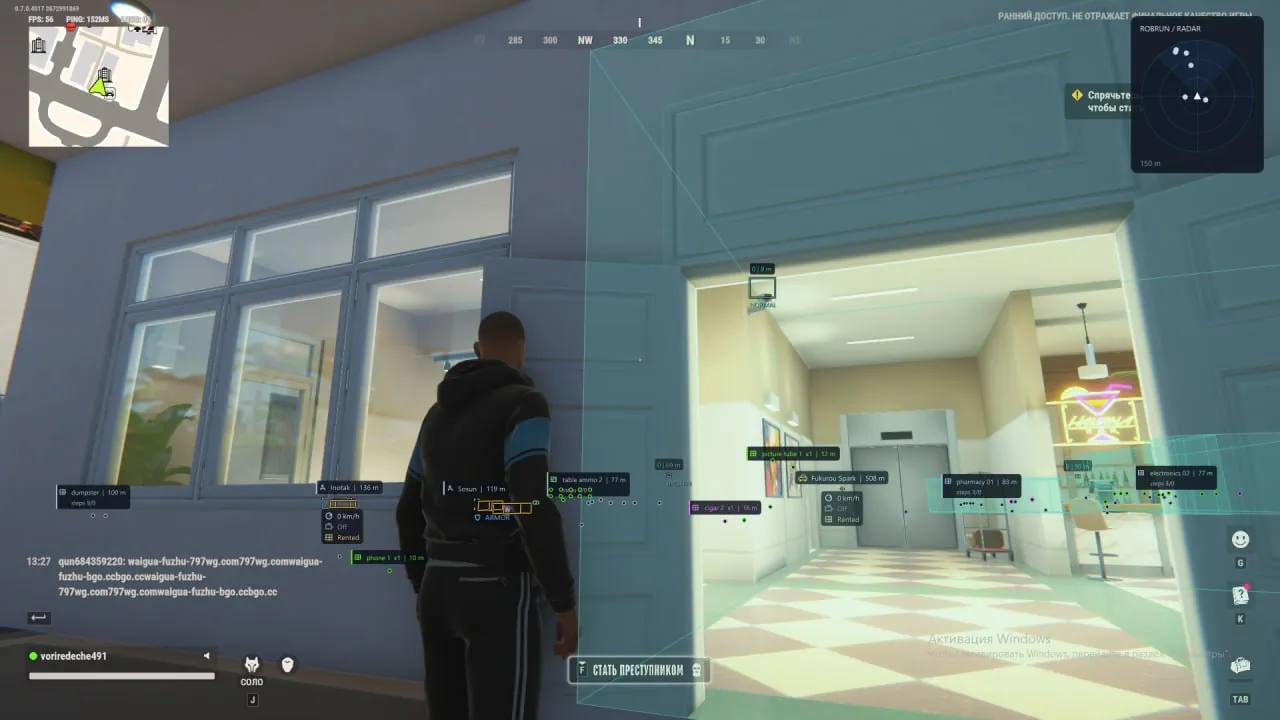
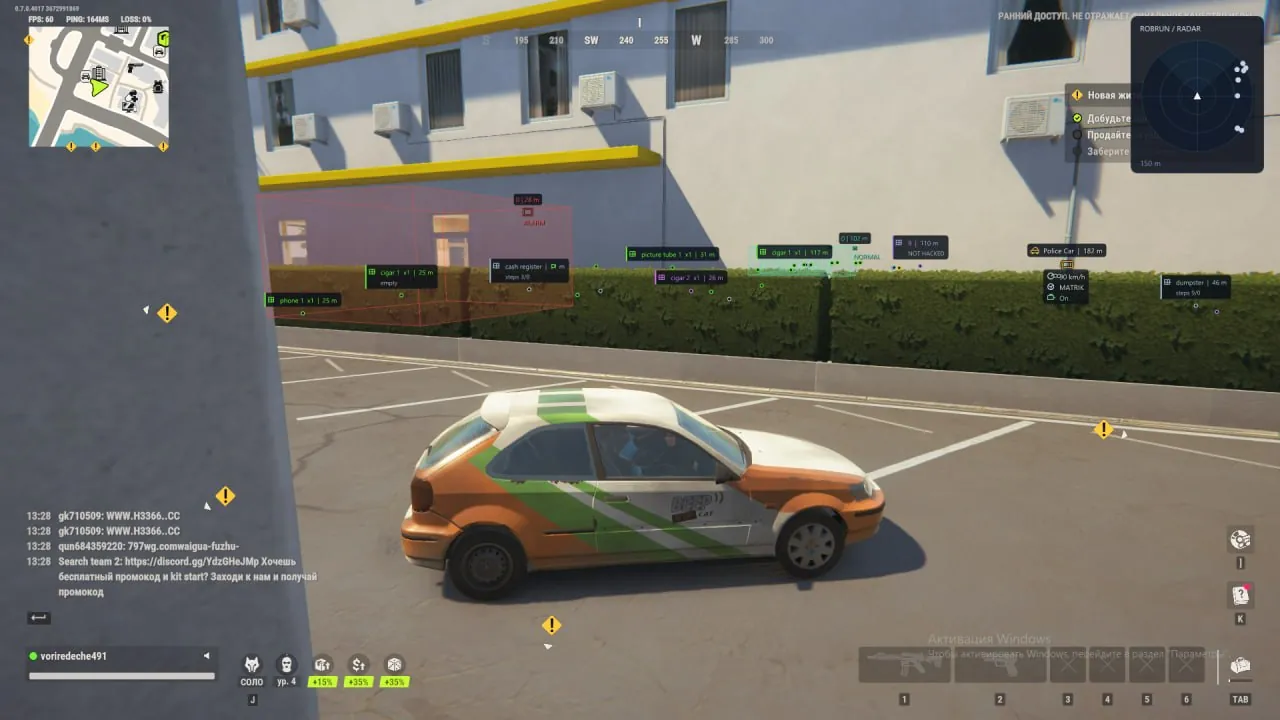
LOOT ESP
- Loot Sources — display items, bags, loot nodes and money nodes.
- World Objects — display cargo, chargers, storage containers and security panels.
- Name — display item or object names.
- Distance — display distance to items or objects.
- Count — display available item quantities.
- State — display the object's current state.
- Markers — use special icons for items and objects.
- Categories — filter weapons, ammunition, armor, equipment, medicine, valuables and other items.
- Game Colors — use the game's item-rarity colors.
- Category Colors — customize colors for individual loot categories.
- Hide Empty — hide objects confirmed to have empty contents.
- Max Distance — set the maximum item/object-display distance.
CAMERA ESP
- Camera ESP — enable surveillance-camera display.
- Name — display camera names.
- Bounding Box — display camera boxes.
- State — display current camera state.
- Detection Zones — display camera detection zones.
- Zone Fill — fill detection zones to make their boundaries clearer.
- State Colors — choose separate colors for working, broken and alarmed cameras.
- Hide Broken — hide broken cameras.
- Max Distance — set the maximum camera-display distance.
RADAR
- Categories — choose game factions, NPCs and vehicles to display.
- Rotate With Camera — rotate the radar with the camera direction.
- Auto Zoom — adjust radar zoom automatically.
- Names — display player names on the radar.
- Range Rings — display concentric distance-reference rings.
- View Sector — display the camera's viewing sector.
- Radar Range — adjust object-detection range.
- Radar Size — resize the radar.
- Opacity — adjust radar-background opacity.
- Position — move the radar while the menu is open.
EXPLOITS
- No Recoil — suppress camera recoil while firing.
- No Sway — suppress weapon sway.
- Local No Spread — suppress client-side spread during shot calculation.
- Fast Loot Nodes — reduce client-side collection time for supported loot nodes.
- Interaction Range — adjust the client-side interaction radius for supported nodes.
- Duration Multiplier — adjust the collection-time multiplier.
- Free Camera — move the camera independently of your character.
HUD
- Faction & Warnings — configure factions and warnings when a member of another faction approaches; multiple settings are available.
- Aim Arrows — toggle player-direction arrows around the crosshair; multiple settings are available.
- Open Doors — warn about open doors and gates at your own loaded base.
- Base Direction — display the direction to your base.
- Distance — display distance to open doors and gates.
- Warning Range — set the maximum distance for checking base objects.
- Warning Limit — limit the number of simultaneous warnings.
MISCELLANEOUS
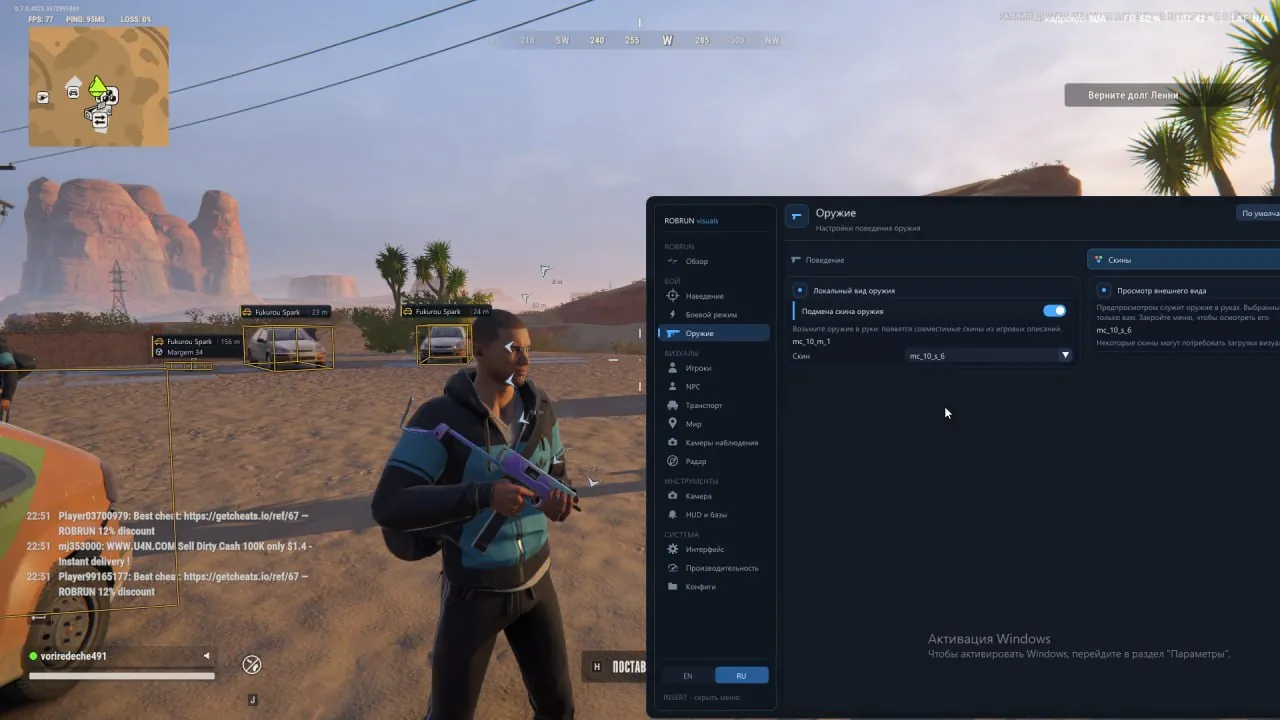
- Skin Changer — change the skin of the active weapon in your hands; visible only to you.
- Battle Mode — configure which ESP elements are shown or hidden.
- ESP Preview — preview the styling of player, vehicle and arrow visuals.
- Visual Presets — choose a subdued or high-contrast preset.
- Clean Screen — hide secondary text and decorative interface elements to reduce visual clutter.
- Config System — create, save, load and delete custom configurations.
- Page Defaults — reset the current section to its default settings.
- Performance — set displayed-character and skeleton limits and visual-update frequency.
- Language — choose Russian or English for the interface.
MEDIA